Finding your way around Genera 8.5
Genera rewards a simple habit: before clicking or typing, look at the bottom of the screen. The selected program, its input context, the object under the pointer, and the available gesture all affect what an action means. The interface tells you much of that state through labels, mode lines, highlighted presentations, and pointer documentation.
Read the frame
A Dynamic Windows program commonly combines:
- one or more named panes;
- an interactor or command-input area;
- a label or mode line identifying the activity, buffer, or context;
- a left-side scroll margin;
- a bottom pointer-documentation region and adjacent status fields.
The white status background and the black pointer-documentation field have different jobs. The black field explains the object or operation under the pointer. Watch it as you cross menu cells, pathnames, commands, buffer names, and other presentations.
Presentations: displayed things that retain meaning
When Genera prints an object as a presentation, it records a relationship among:
- the actual object;
- a presentation type;
- the visible region; and
- the current input context and applicable handlers.
Left, Middle, Right, and modified clicks can therefore act on the object rather than reparse its printed characters. Right commonly offers an operation menu. Highlighting and pointer documentation tell you which nested object and handler will win.
This is why a row in Inspector, a pathname in a directory display, and a command name in Help can all feel interactive without being conventional buttons.
Select an activity
The inspected base world has these direct Select gestures:
| Gesture | Activity | Gesture | Activity |
|---|---|---|---|
Select = |
Select Key Selector | Select C |
Converse |
Select D |
Document Examiner | Select E |
Editor |
Select I |
Inspector | Select L |
Lisp |
Select M |
Zmail | Select N |
Notifications |
Select P |
Peek | Select Q |
Frame-Up |
Select T |
Terminal | Select X |
Flavor Examiner |
Select consumes one suffix. The activity layer then searches for a suitable existing window, considers recent windows and compatibility, and creates one only when its policy requires that. “Select launches an app” is therefore an unreliable mental model.
If a facility lacks a one-character binding, type the Command Processor command Select Activity and complete its activity name. Select = opens the selector used to inspect or stage assignments; do not change a preserved system's bindings merely to explore them.
Open the System Menu
In the tested Listener, hold Shift and the Right mouse button over the client. Release after inspecting the menu or selecting a cell.
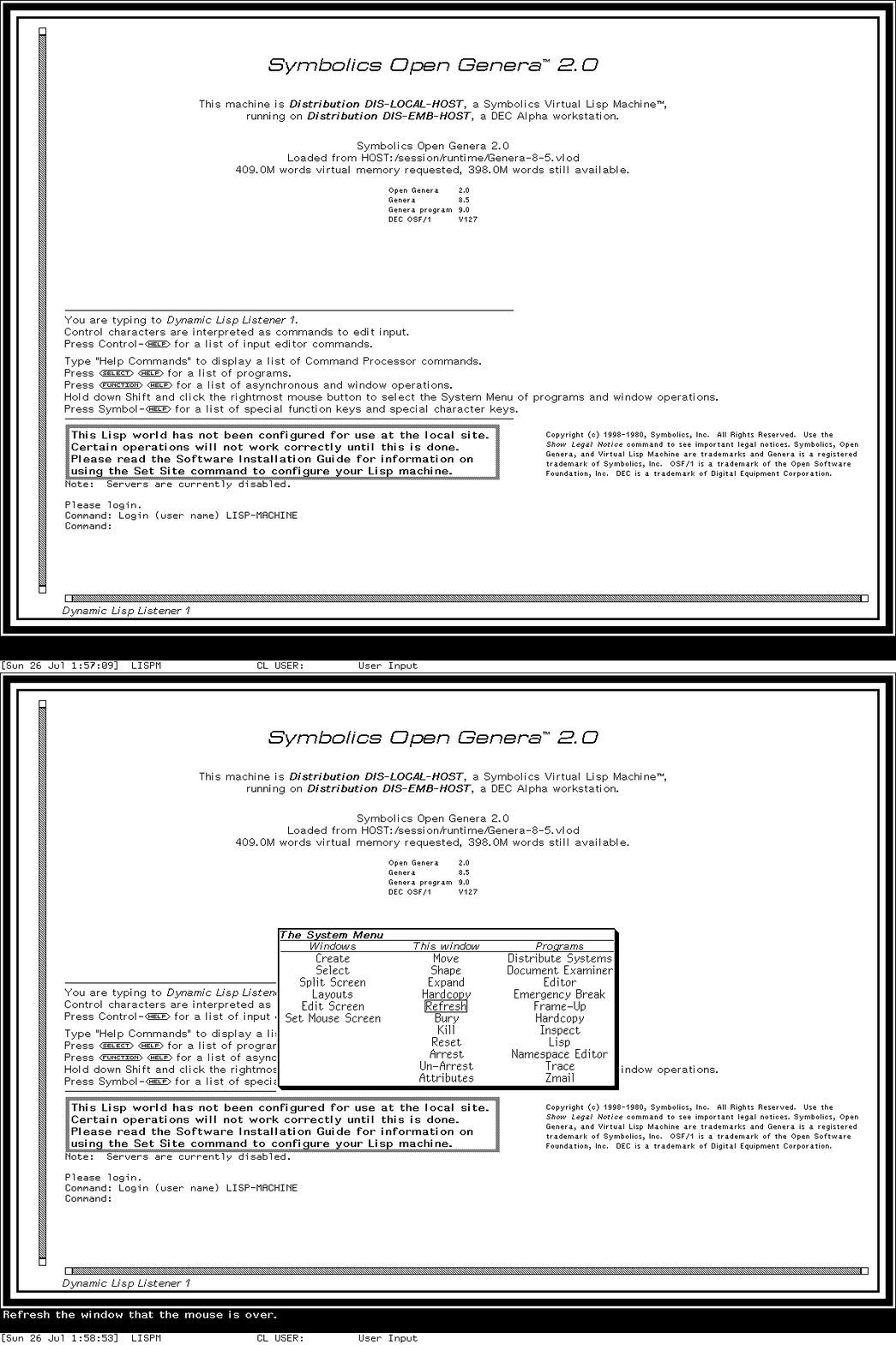
Keybinding and pointer illustration: the first complete frame is a reviewed Dynamic Lisp Listener state; the second is the reviewed Genera 8.5 System Menu state produced by holding Shift and Right over a Listener. The loop is a teaching comparison assembled from ordered action-boundary captures in one session, not a real-time recording. It does not establish transient timing, pointer motion, or every callback.
The three columns answer different questions:
- Windows creates, selects, splits, edits, and manages the screen.
- This Window acts on a selected or pointed-at window: refresh, bury, reshape, inspect, hardcopy, and related operations.
- Programs selects registered facilities such as Lisp, Editor, Inspector, Document Examiner, Frame-Up, Namespace Editor, Trace, and Zmail.
An item can have different Left, Middle, and Right behavior. Read the pointer documentation before committing a This Window operation.
Try the Dynamic Lisp Listener
- Use
Select L. - Type
(+ 40 2)and press Return. - Type
Help Commandsto see command areas available in this world. - Type a command name with spaces as ordinary words; the Command Processor parses commands and typed arguments rather than requiring every action to be a Lisp form.
- Use Abort to leave an incomplete input transaction.
Commands and Lisp forms share the interaction surface but are not the same parser. Typed arguments may use completion, histories, defaults, and presentation selection. The Dynamic Lisp Listener dossier defines the exact inspected behavior.
Try the Editor and contextual Help
- Use
Select E. - Press Help to open the Zmacs Help dispatcher.
- Use
Meta-Xfor a named editor command. - Use
Control-X 3to split the editor and select a new buffer in the second pane. - Watch the mode lines: they tell you which buffer and mode will receive the next editor gesture.
Do not assume every Emacs binding. Zmacs shares ancestry and concepts with Emacs, but its command tables, mouse presentations, Help, extended character set, Super/Hyper families, and system integration are Lisp-machine facilities. Use the complete Genera Zmacs binding reference when a tour step leaves the basic path.
Scroll margins are active controls
The left scroll margin is not ornamental. Its shaft and moving region communicate document position, and button gestures provide movement with semantics owned by the window. Exact button and double-click behavior varies by scroll-window family. Do not infer modern “drag the thumb” behavior where the historical program defines a different mouse protocol.
Watch the pane rule as well as the scrollbar. A /\/\/\ top or bottom edge means that retained output continues beyond that edge (or that the pane is using a secondary viewport). Genera also has left and right versions for horizontal continuation; they are uncommon in ordinary text because the pane often has no horizontal offset or overflow. A straight edge means that continuation predicate is false, not that this pane uses a different decorative theme. See Ragged window borders for the four exact states and a reviewed example.
Safe exploration boundaries
This world is not a configured site. Terminal, mail, namespace, printer, file-server, tape, and network entries may open a local frame while their external operation remains unavailable. Never convert “the menu offered it” into “the service worked.” Disk repair, world saving, distribution, and administration commands deserve a private disposable world and their dossier's failure-ordering guidance.
Where to go next
- Continue into the linear Genera working session
- Genera application atlas
- Activities, Select keys, and System Menu evidence
- Genera Zmacs
- Dynamic Windows specification
- Presentation Inspector
Last runtime evidence verified: 2026-07-19.