A working session in Symbolics Genera
Imagine that you are investigating a small program in Genera 8.5. You will evaluate some Lisp, edit a definition, consult documentation, inspect an object, reshape the workspace, diagnose a synthetic failure, and glance at communications and administration tools. The tasks are loosely connected on purpose: the story is a way to encounter the system's interface language in context.
Follow this page from top to bottom the first time. The separate application atlas remains the exhaustive D01-D60 reference, including optional products and facilities that cannot honestly be demonstrated in the isolated base world.
Before touching anything
Look at the bottom of the screen before acting. Genera's pointer-documentation field describes what the object under the pointer and each mouse gesture would mean in the current input context. The adjacent status fields describe the selected activity and machine state.
Three principles will recur:
- displayed text can be a typed presentation of an object;
- Select finds an activity according to activity policy, rather than simply launching a new process; and
- commands, Lisp forms, menus, and mouse gestures share one semantic environment.
Every animation below uses ordered action-boundary captures from one Genera harness session. The frames retain the actual typed input, prefix, prompt, or menu state that connects the beginning to the result; no animation alternates unrelated endpoints. Because independent X11 video grabbing interfered with this VLM/Xvfb path, these are not represented as real-time recordings.
1. Begin in the Dynamic Lisp Listener
Use Select L, then enter:
(values 17 23)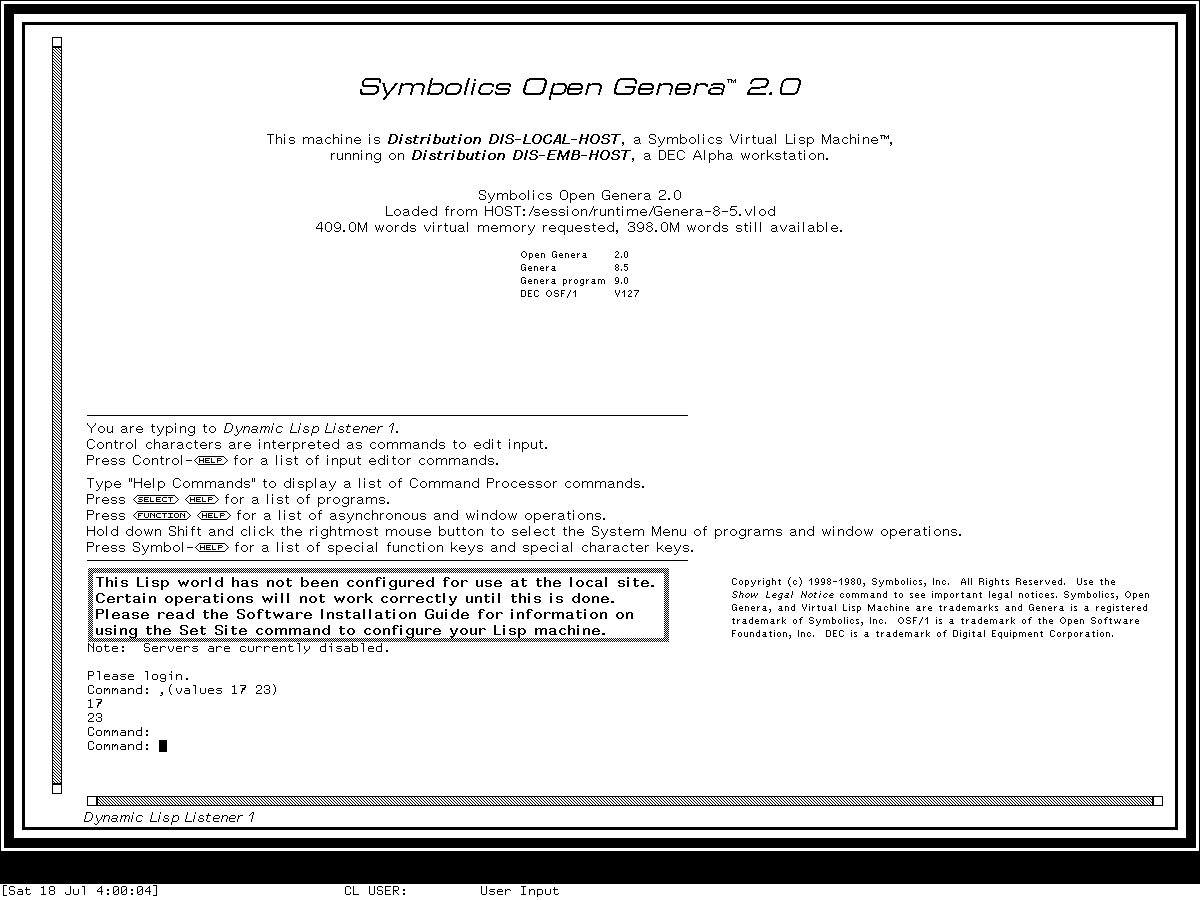
The interactor accepts Lisp forms, but it also participates in the Command Processor. A command such as Select Activity is parsed as a command with typed arguments; it is not a Lisp form with missing parentheses. Completion, histories, defaults, and clicking suitable presentations can help satisfy those arguments.
Use Abort to cancel an incomplete input transaction.
2. Open the System Menu and read it semantically
Hold Shift and the Right mouse button over the Listener.
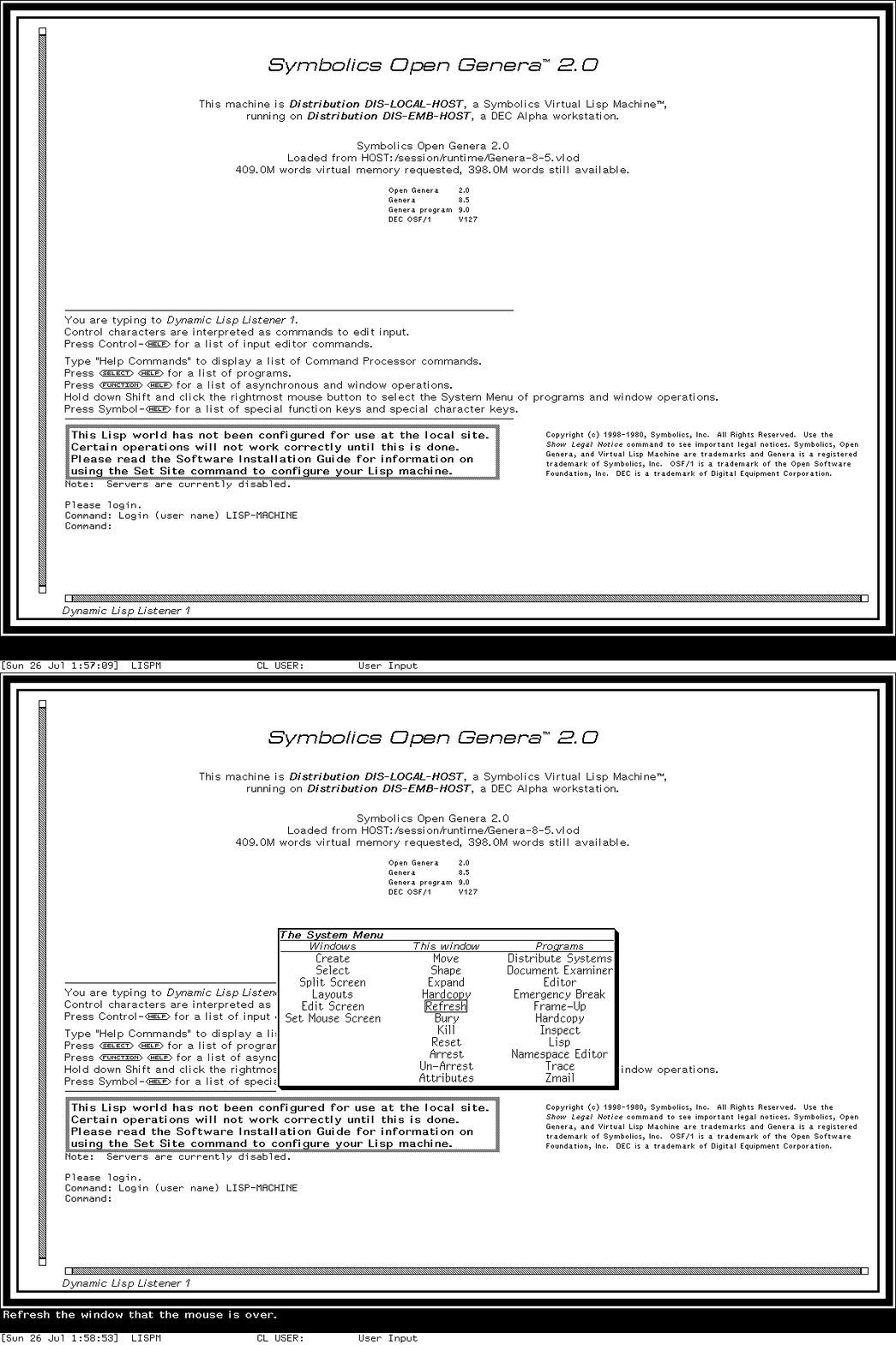
Runtime interaction: the logged-in Listener and visible Shift-Right result are ordered captures around the actual dispatched gesture in one session.
The columns distinguish operations on the complete screen, operations on a selected window, and registered programs. Left, Middle, and Right can mean different things on the same cell. Move the pointer and read the documentation field before committing an operation.
3. Select the Editor as an activity
Press Select E. The activity machinery looks for a compatible Editor window and may reuse one instead of creating another.
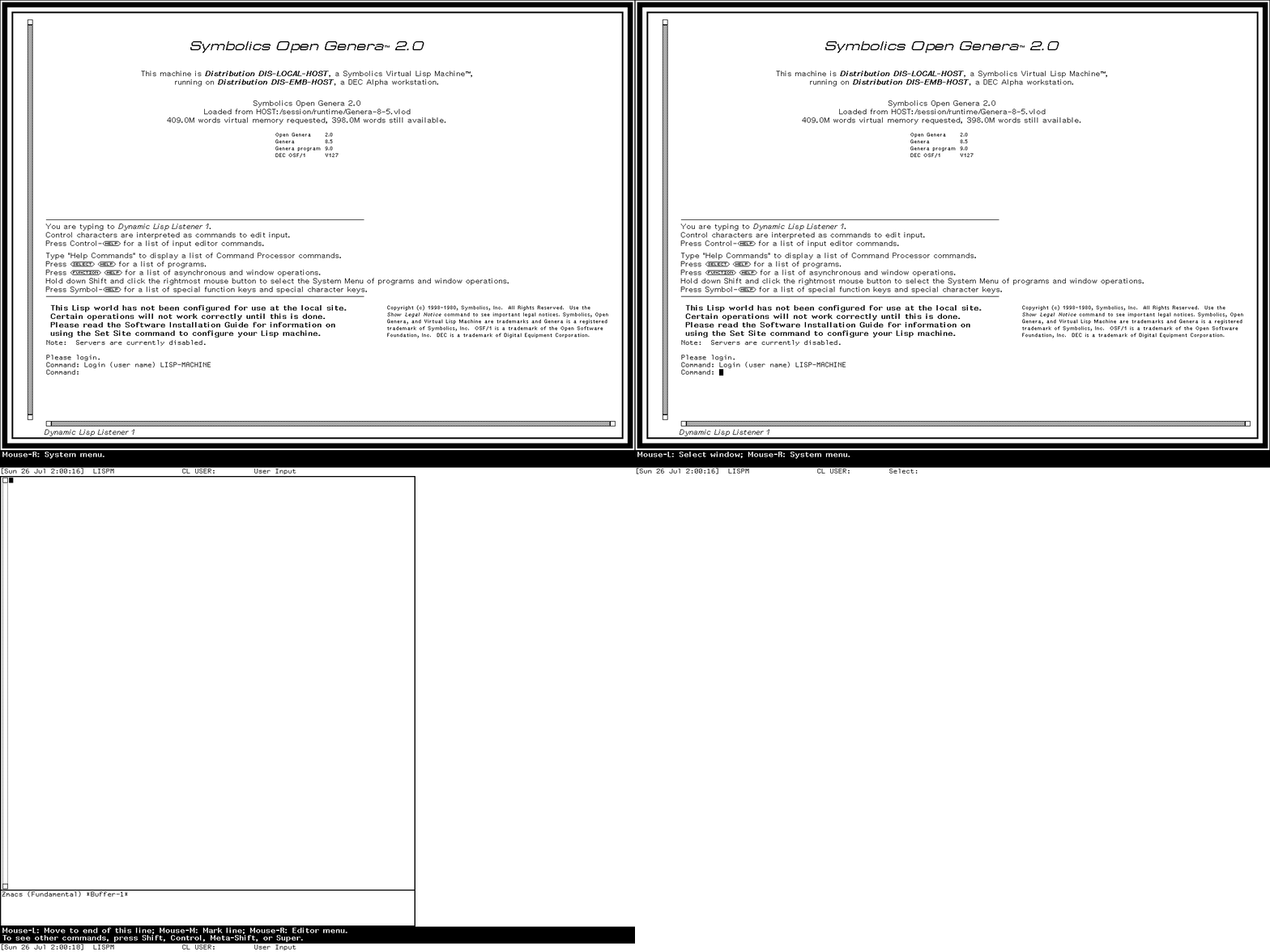
Runtime interaction: Listener, visible Select prefix, and selected Editor are from one session. It does not claim every creation/reuse policy branch.
The two mode lines identify which buffer and mode each pane displays. The selected pane owns the next editing command. Control-X 3 is the familiar split command in this profile, but the result belongs to Zmacs and its window machinery, not to a modern browser-style tab system.
4. Ask Zmacs for contextual Help
Press Help in the selected editor pane:
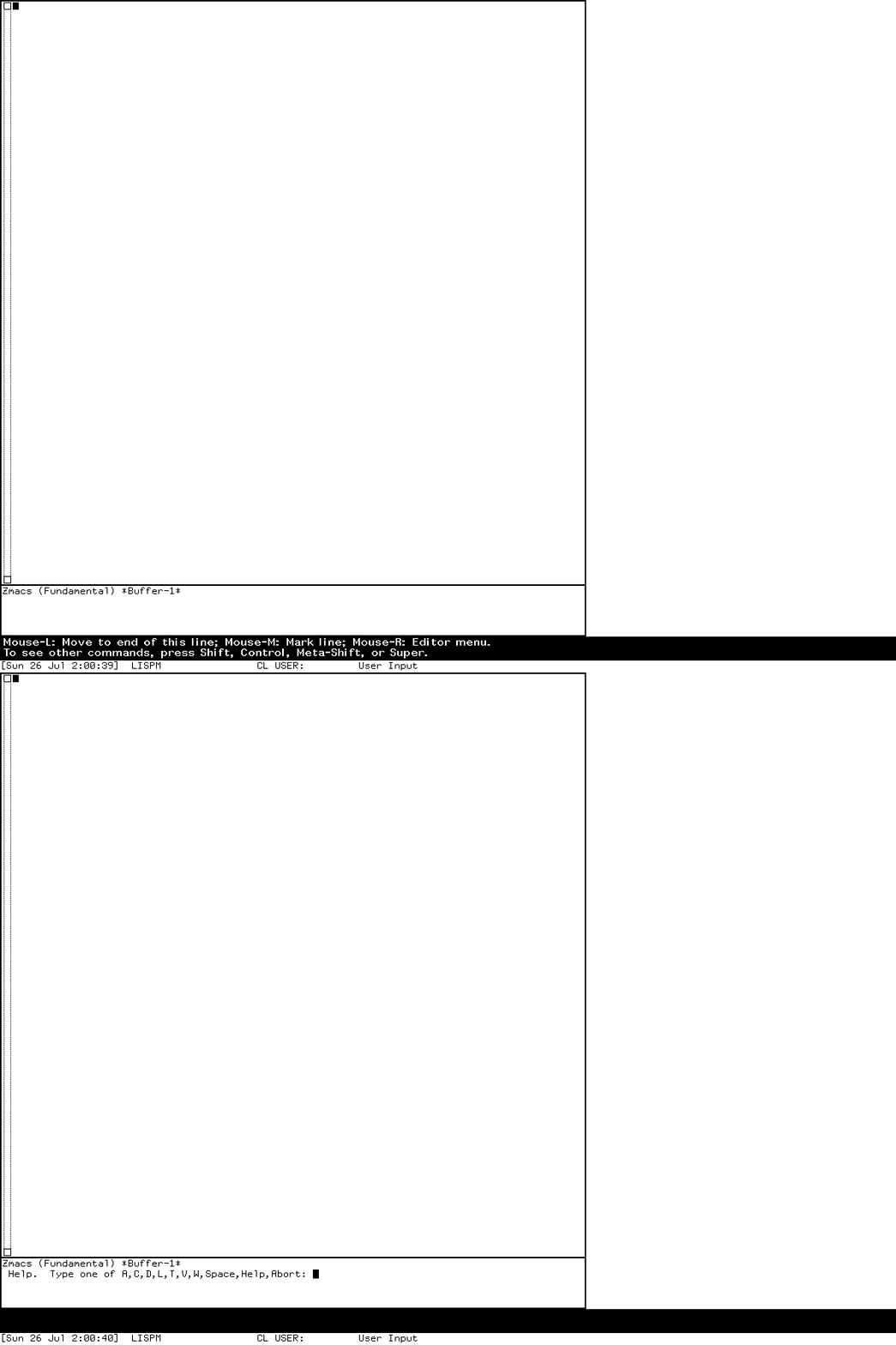
The dispatcher can describe keys, commands, modes, and other active documentation. Help is contextual: asking in a different mode or pane can produce a different command universe. Abort returns without deleting the Editor activity.
5. Discover that menus also belong to the context
Open the Zmacs Editor menu with the verified mouse gesture:
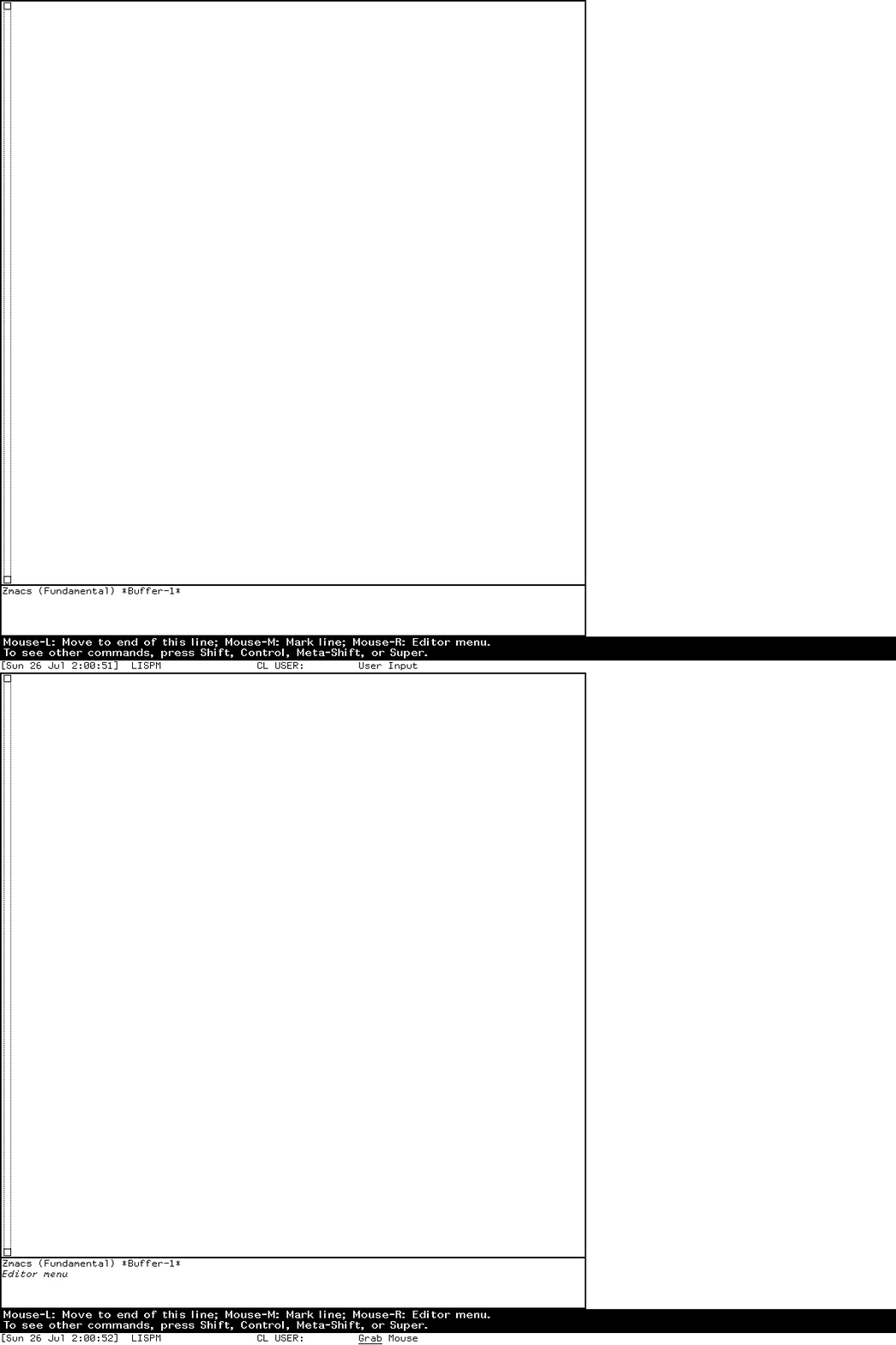
The menu is temporary, object- and mode-sensitive, and paired with pointer documentation. It is not a permanently mounted application menubar. Named commands remain available through Meta-X, while Control, Meta, Super, and Hyper bindings provide direct command families.
6. Operate on a displayed buffer object
Open List Buffers. Move the pointer over a buffer row and watch the documentation field, then request the generic operation menu:
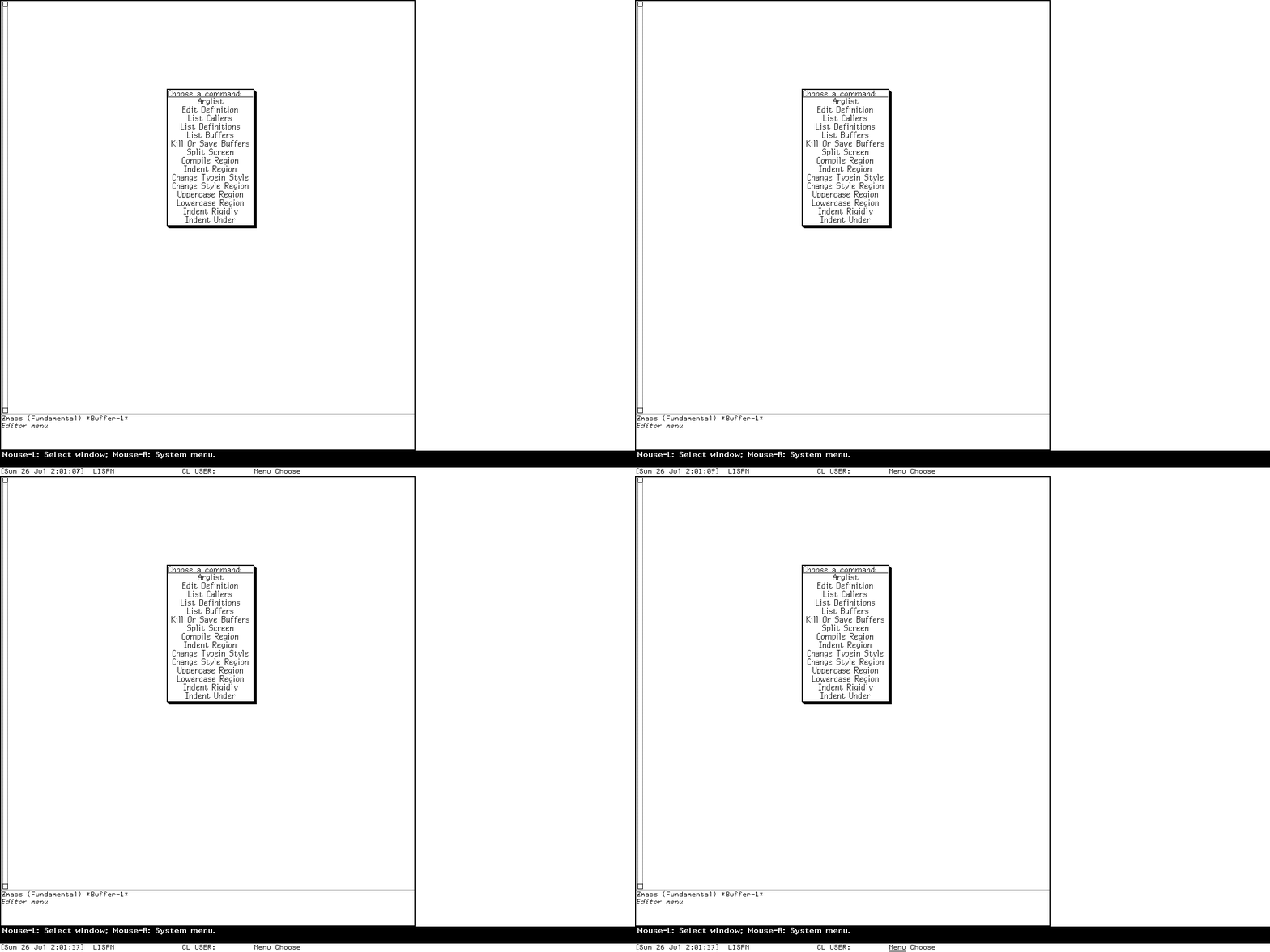
Runtime interaction: four ordered action-boundary captures from the same List Buffers operation; they preserve the visible states without inventing pointer motion or real-time menu latency.
The row is not merely a string containing a buffer name. It is a presentation linked to a buffer object, and the applicable operations arise from that type and the current context. This is the central Genera interaction idea in a small, concrete example.
Edit Buffers uses a complementary mark-then-execute workflow:
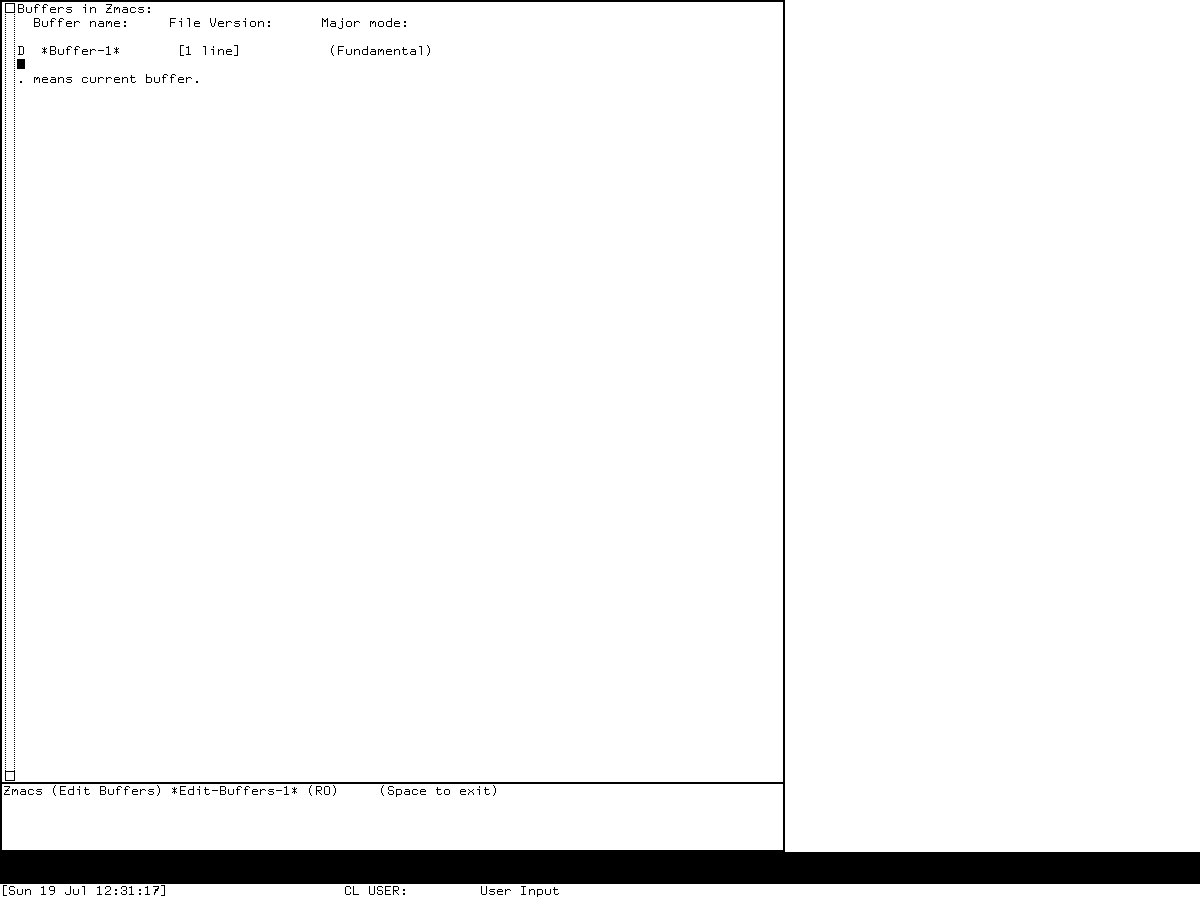
Staging is visible before execution, which gives you a chance to review or unmark the operation.
7. Change character style without reducing it to a CSS font picker
Invoke the verified Zmacs character-style command:
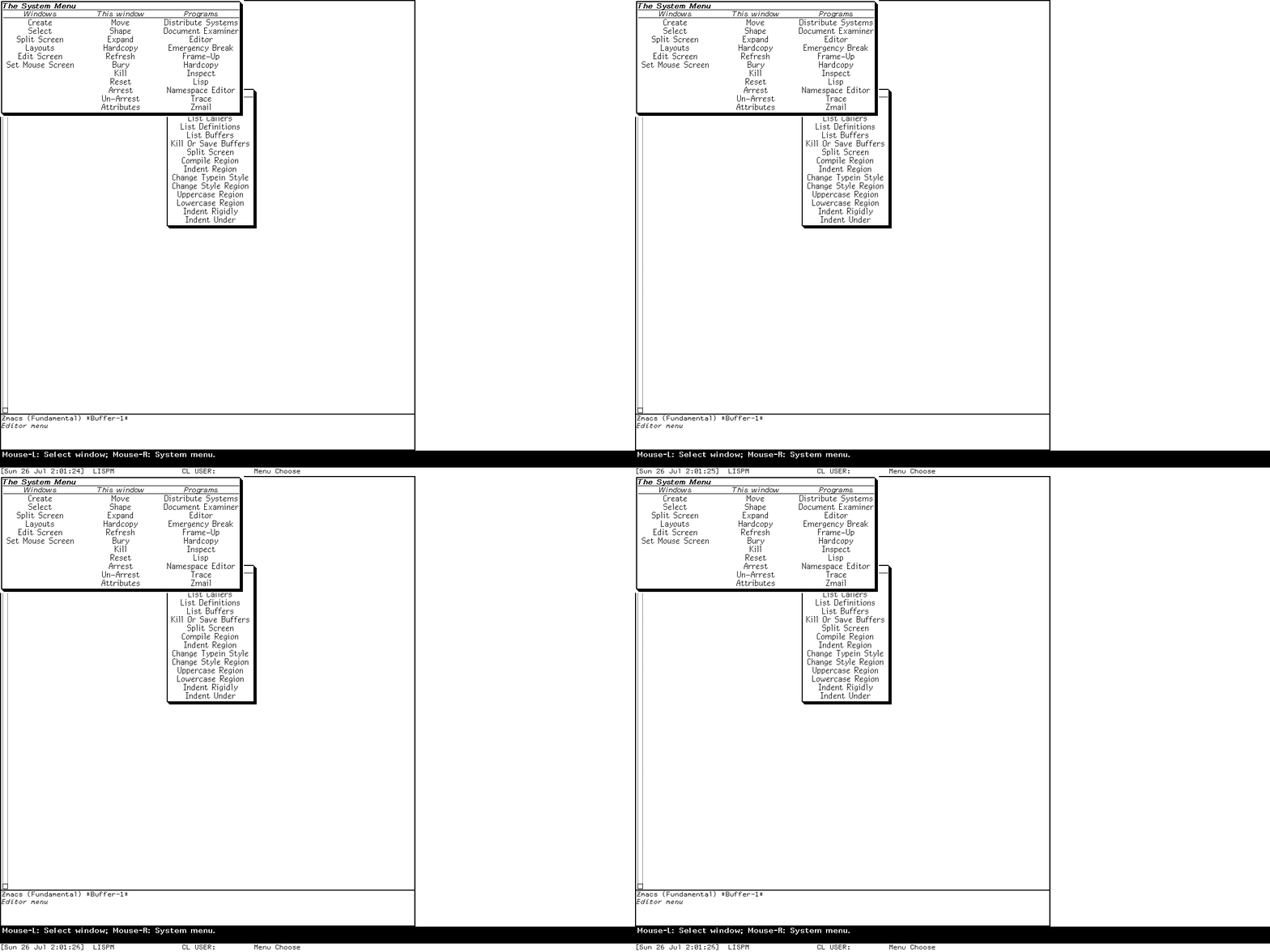
Genera character styles are semantic family, face, and size triples resolved through device mappings. The prompt shows a live input transaction with a default; it does not prove that every style exists on every device or that the demonstrated change was committed.
8. Consult Document Examiner inside the same environment
Press Select D.
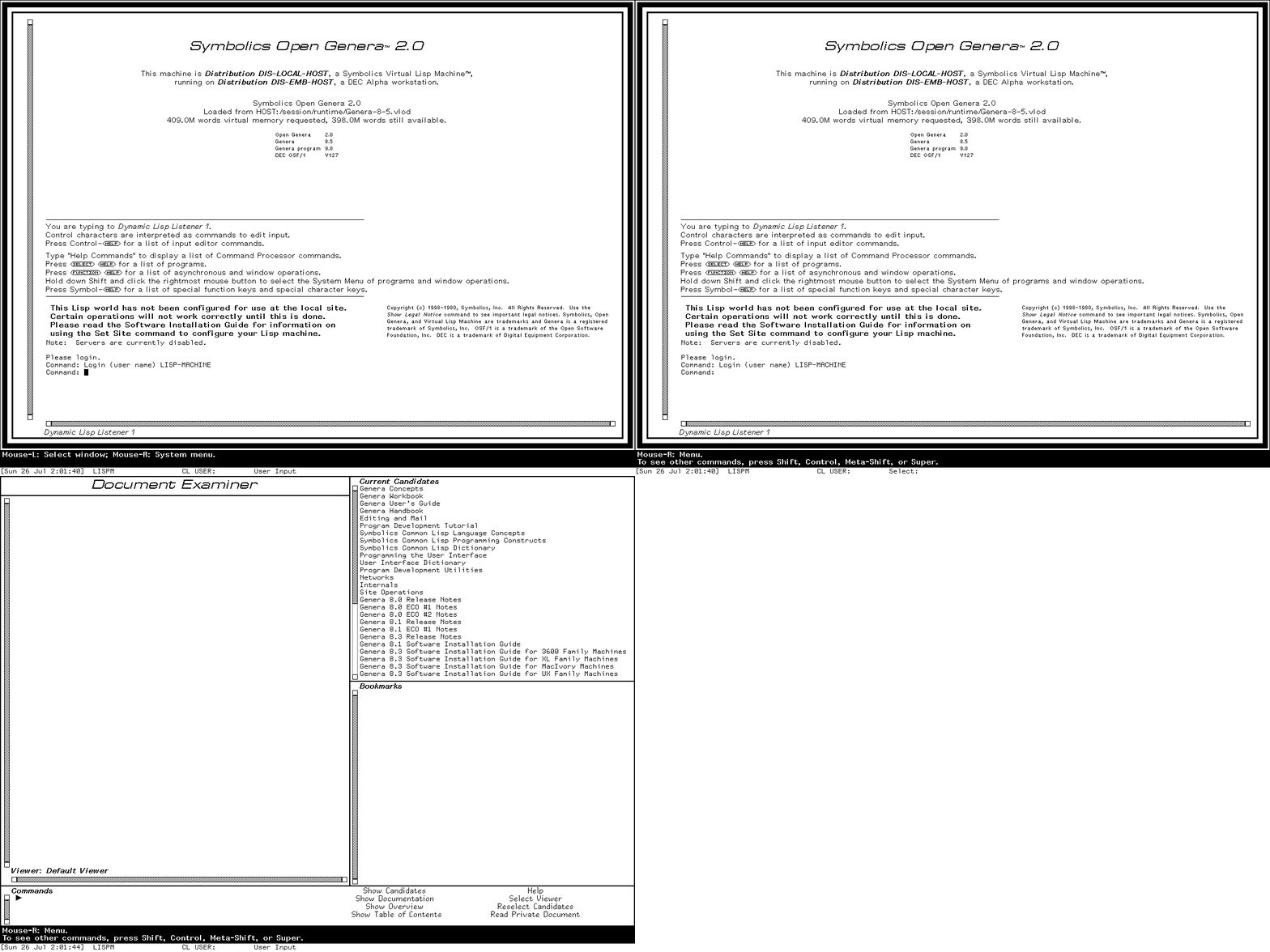
Document Examiner combines a viewer, candidate or bookmark panes, command area, active scroll margins, and presentation-sensitive references. It is an application, not an HTML browser embedded in the machine. This isolated world can demonstrate the frame and installed documentation index, but the tour does not republish its licensed prose.
9. Follow a presentation into its handlers
Presentation Inspector makes the semantic layer visible. Inspect an integer presentation, then request its handler report:
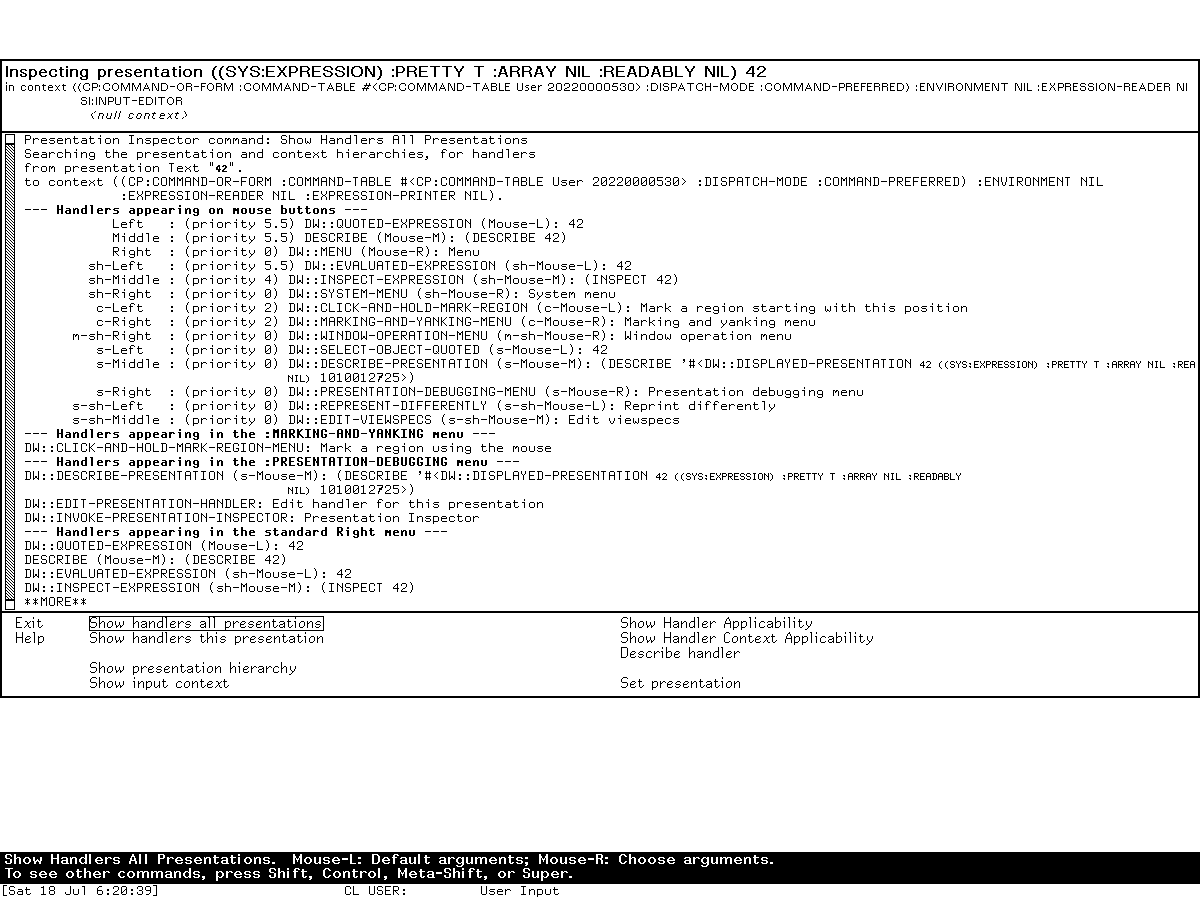
Runtime observation: this remains a still until a coherent inspect-and-report interaction has been re-recorded. It is not presented as an animation.
The report connects the displayed region to presentation types and translators. Which gesture applies depends on the active input context, nested presentation, and translator specificity. “Everything is a hyperlink” is therefore the wrong model.
10. Inspect an ordinary Lisp object
Use Select I and inspect a small list:
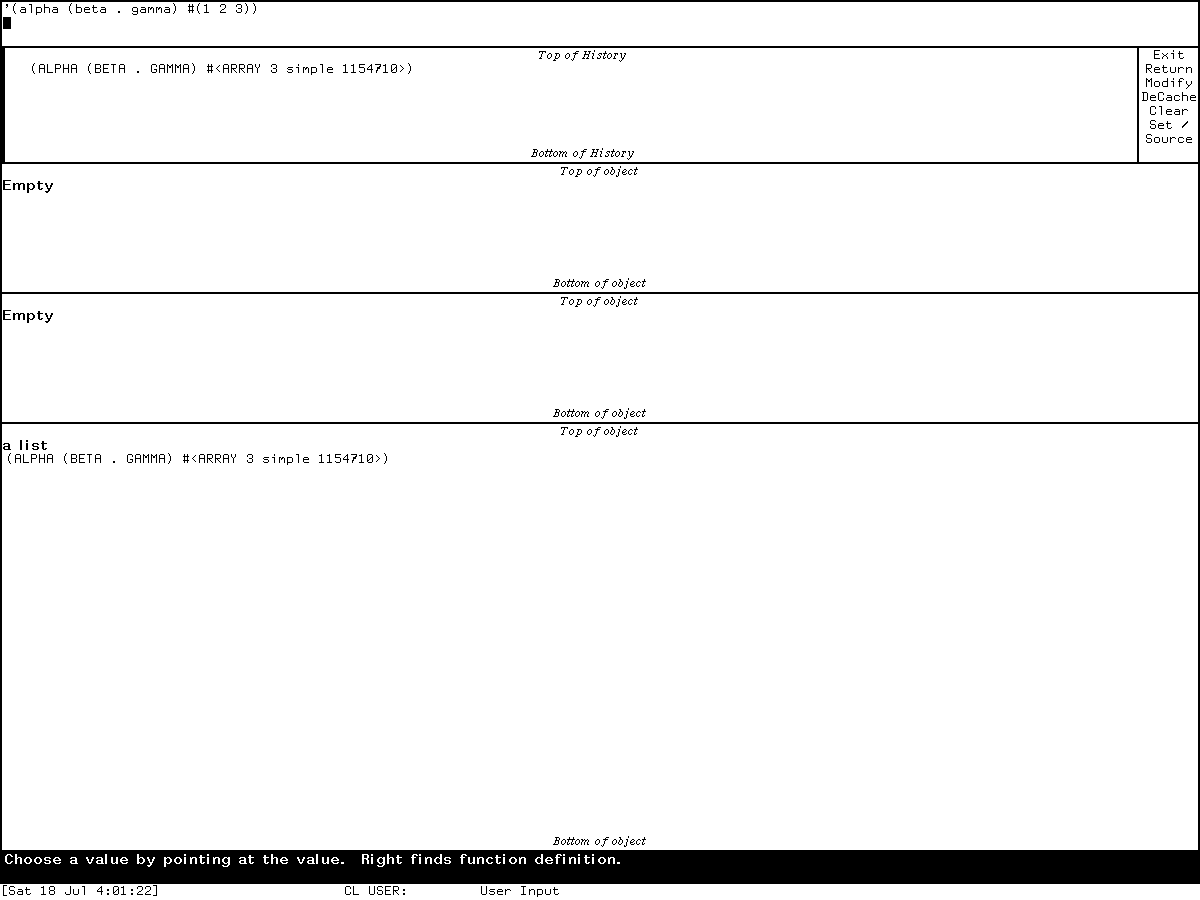
Inspector presents components as actionable rows and allows safe navigation into the object graph. Right-button operations and pointer documentation expose more than textual printing, while the selected object and history remain application state.
11. Rearrange the workspace with Frame-Up
Press Select Q to enter Frame-Up and create the reviewed split layout:
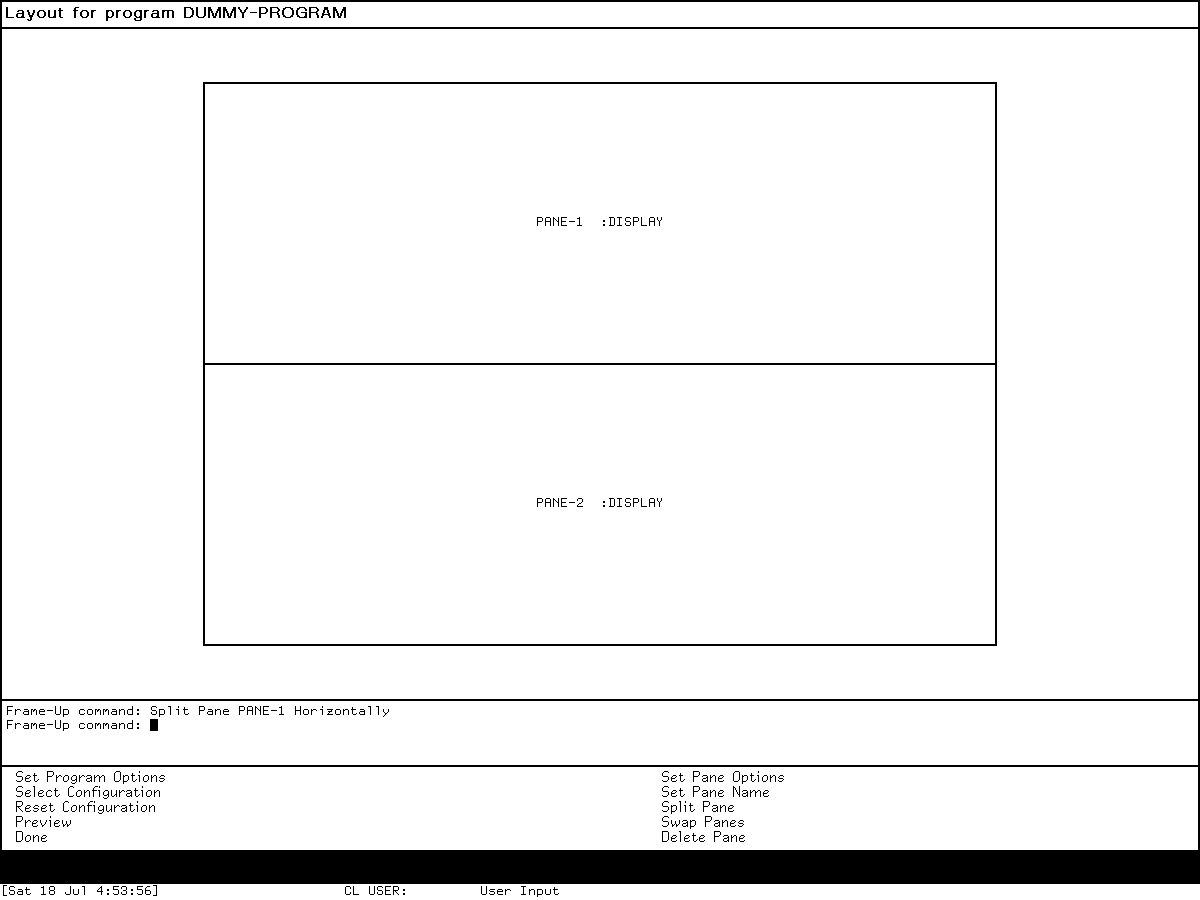
Runtime observation: this remains a still until a coherent reshape interaction has been re-recorded. It establishes the resulting split and frame decorations, not the pointer path or intermediate geometry.
Frame-Up operates on the screen's window hierarchy. Pane rules, labels, scroll margins, and ragged continuation edges have functional meanings. The workspace is not a modern collection of draggable cards.
12. Diagnose a controlled failure
Signal only the synthetic condition used by the museum's debugger audit:
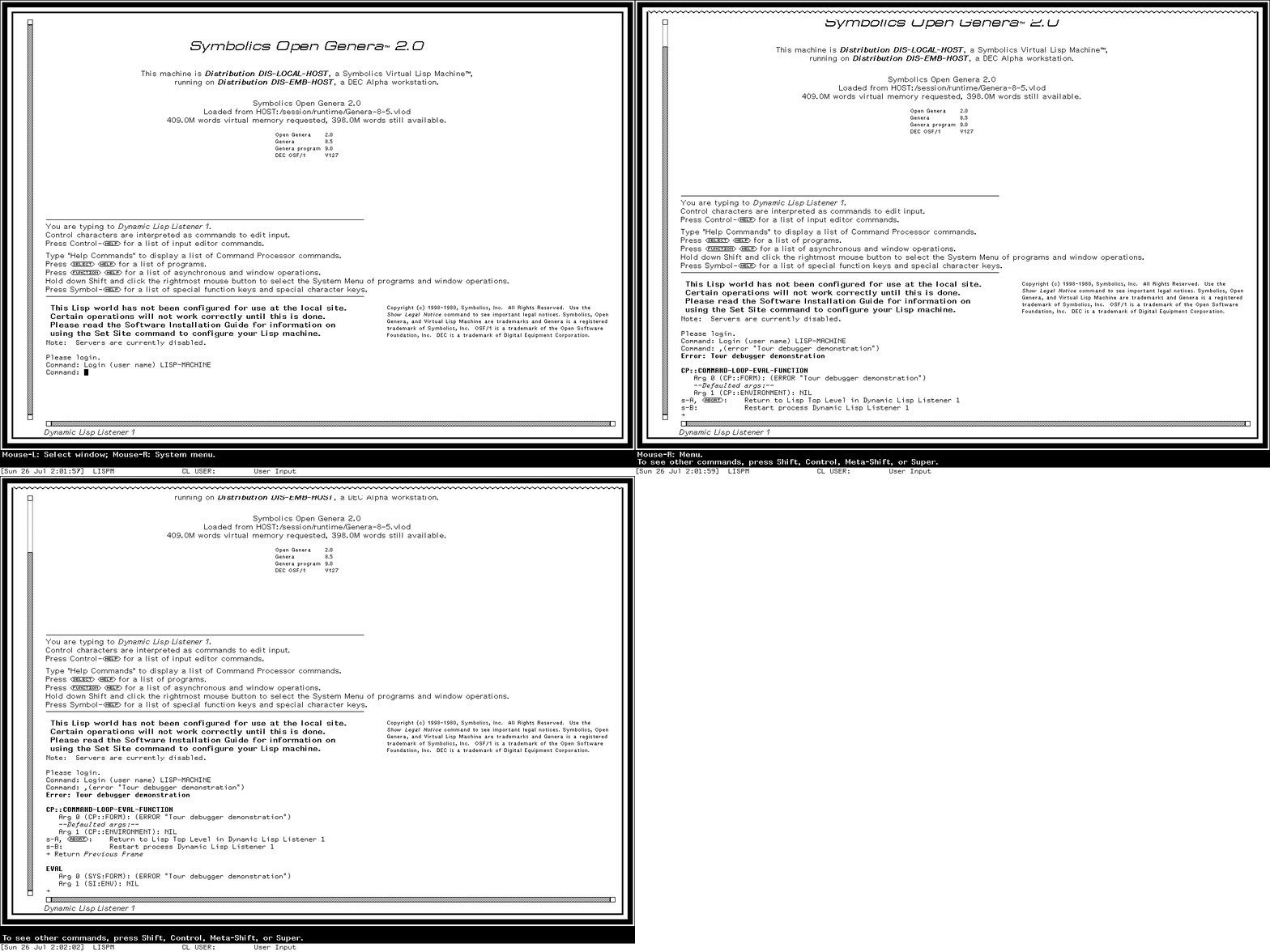
The Debugger reports condition and stack context, then constructs choices available for that failure. Commands can inspect frames, evaluate in context, restart, or abort. A choice that exists for one condition need not exist for another, and Abort cannot undo side effects that occurred before the signal.
Emergency Break is a different degraded path:
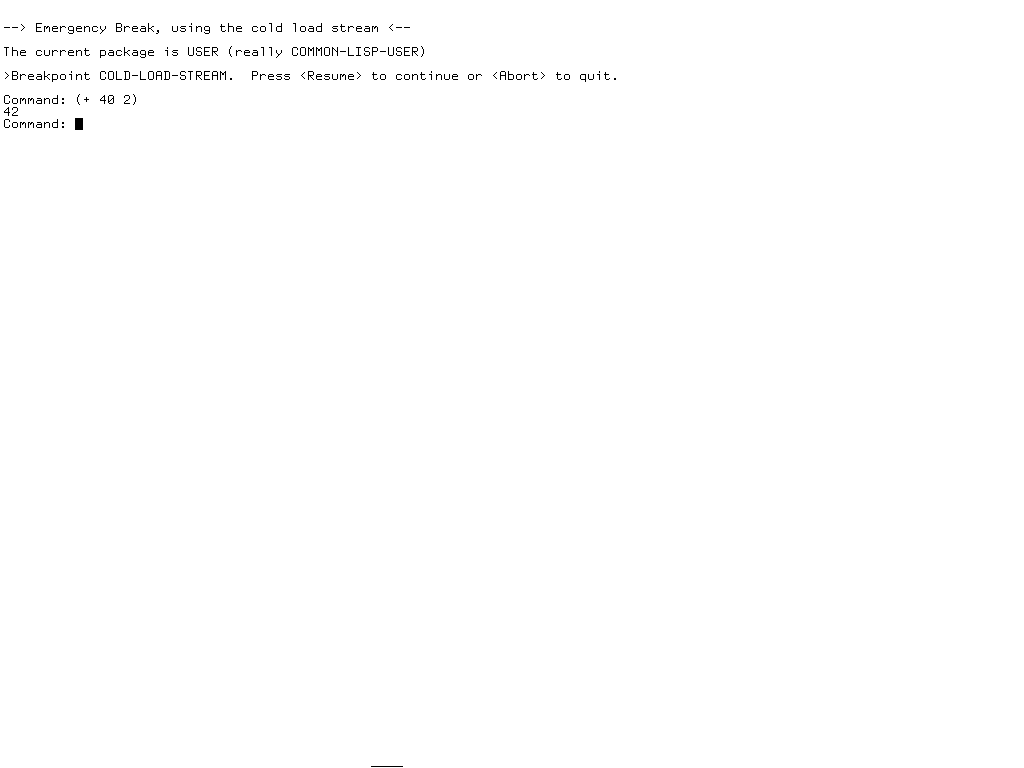
Use it to understand recovery architecture, not as a second everyday Listener.
13. Meet Accepting Values
Open the GC options form used by the runtime audit:
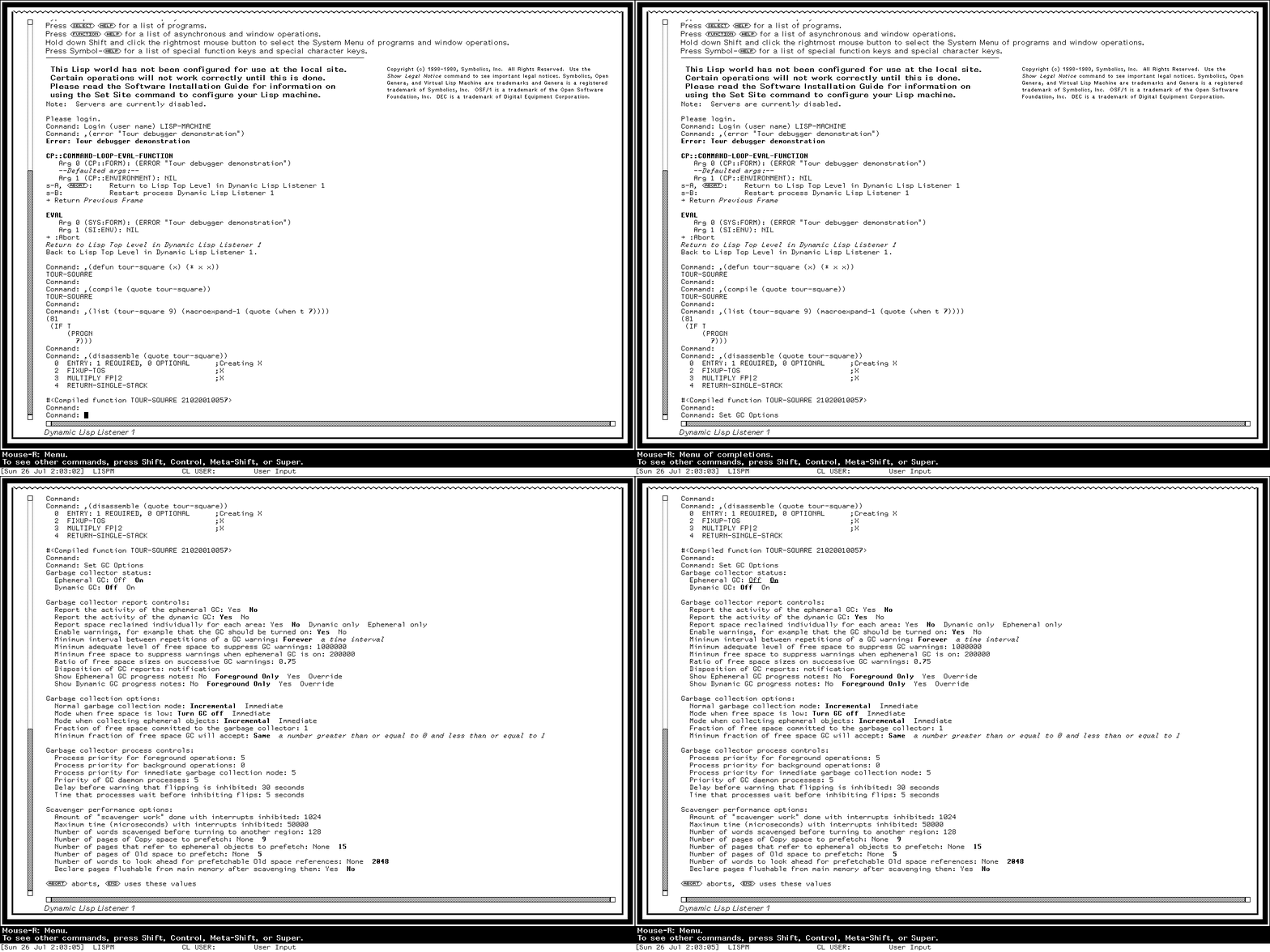
Fields are typed presentations with defaults, validation, completion, and actions. The display is textual and dense, but it is not an unstructured prompt transcript. The same substrate can expose choices through keyboard entry and mouse gestures.
14. Look beneath a definition
Use the verified compiler workflow to macroexpand a harmless form and disassemble a small researcher-defined function:
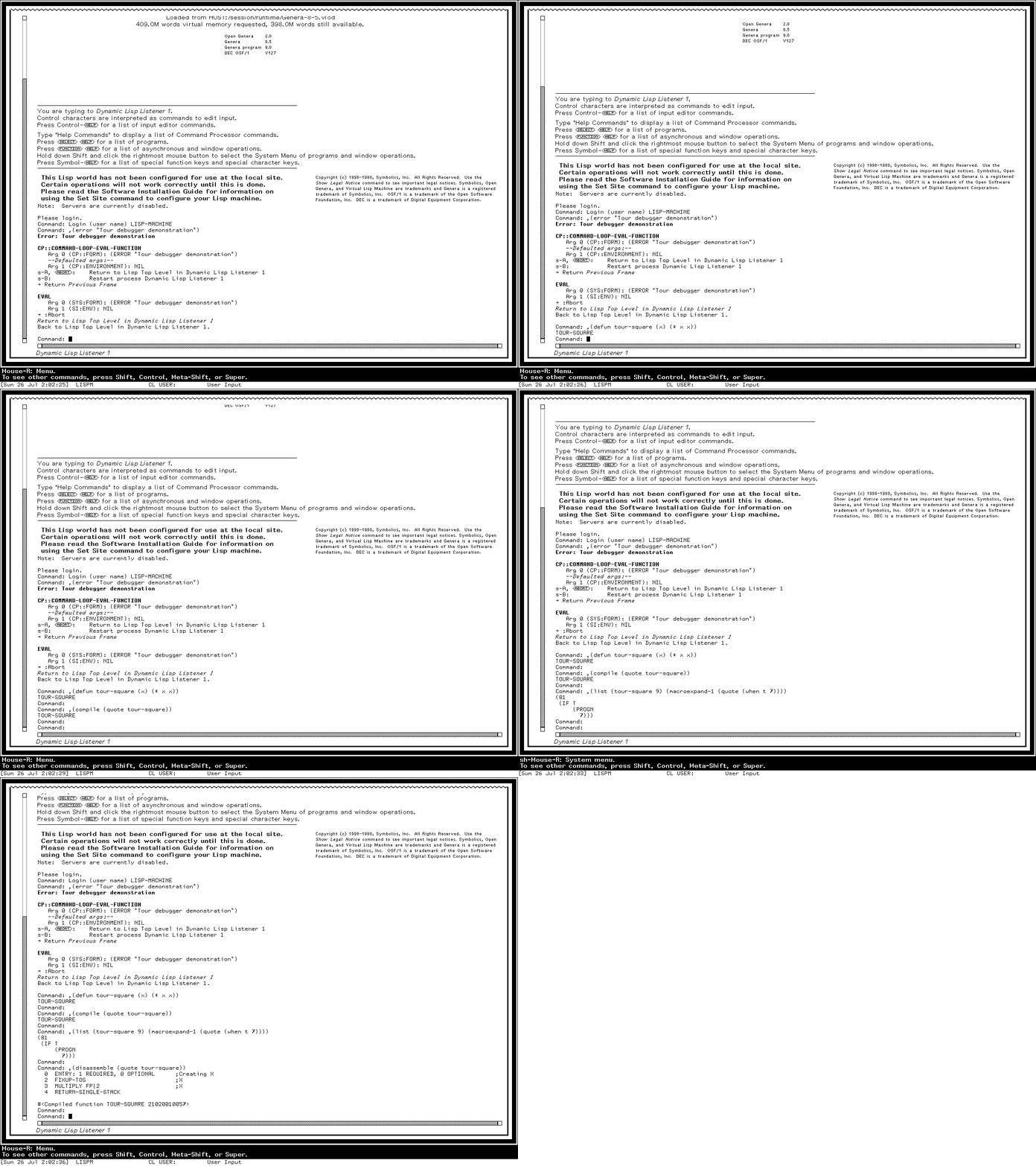
Editing, compilation, macroexpansion, tracing, disassembly, object inspection, and debugging are neighboring operations in the live environment.
Flavor Examiner provides a structured view of the older object system:
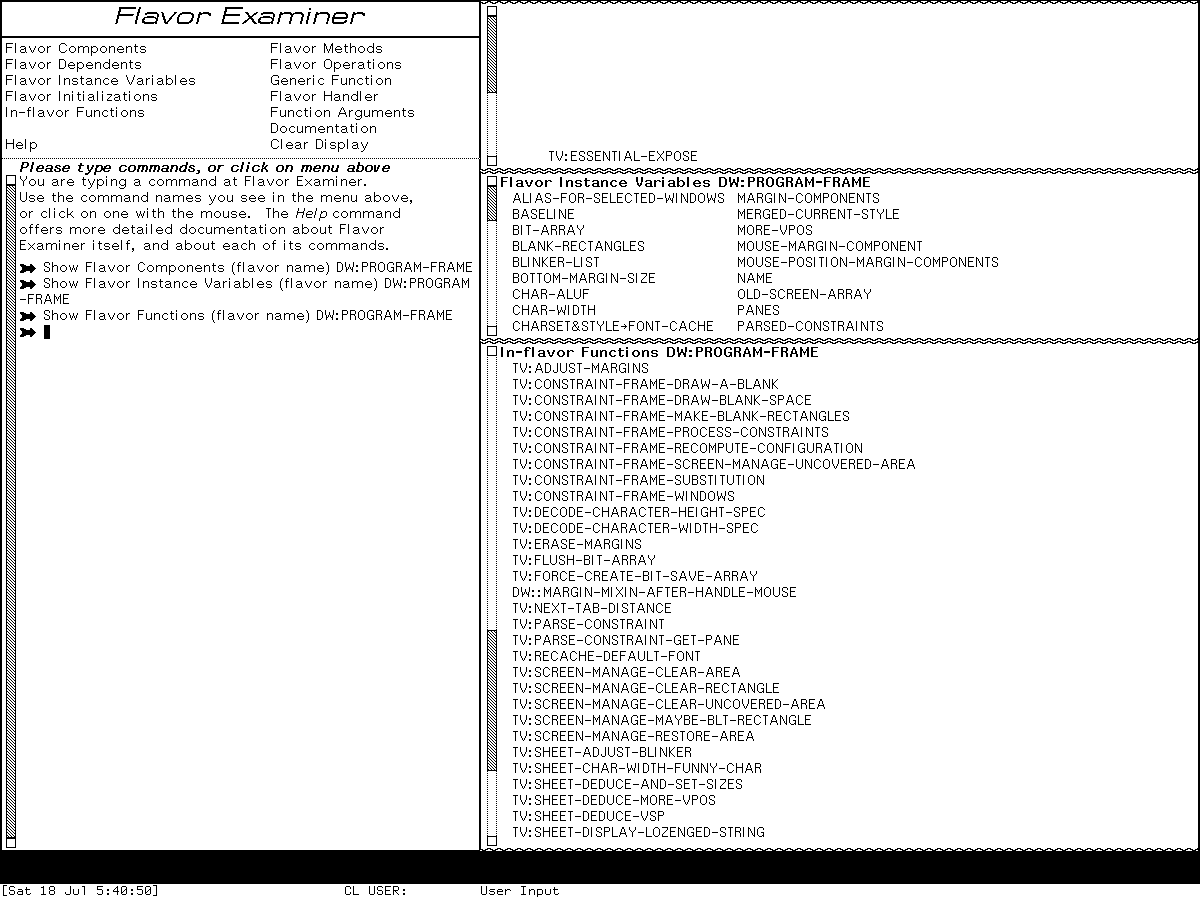
The application rotates and retains several result panes, letting you compare different aspects of one Flavor without turning them into unrelated windows.
15. Visit communications without inventing a configured site
The base world registers communications activities, but the harness deliberately provides no external route or guest-visible file service.
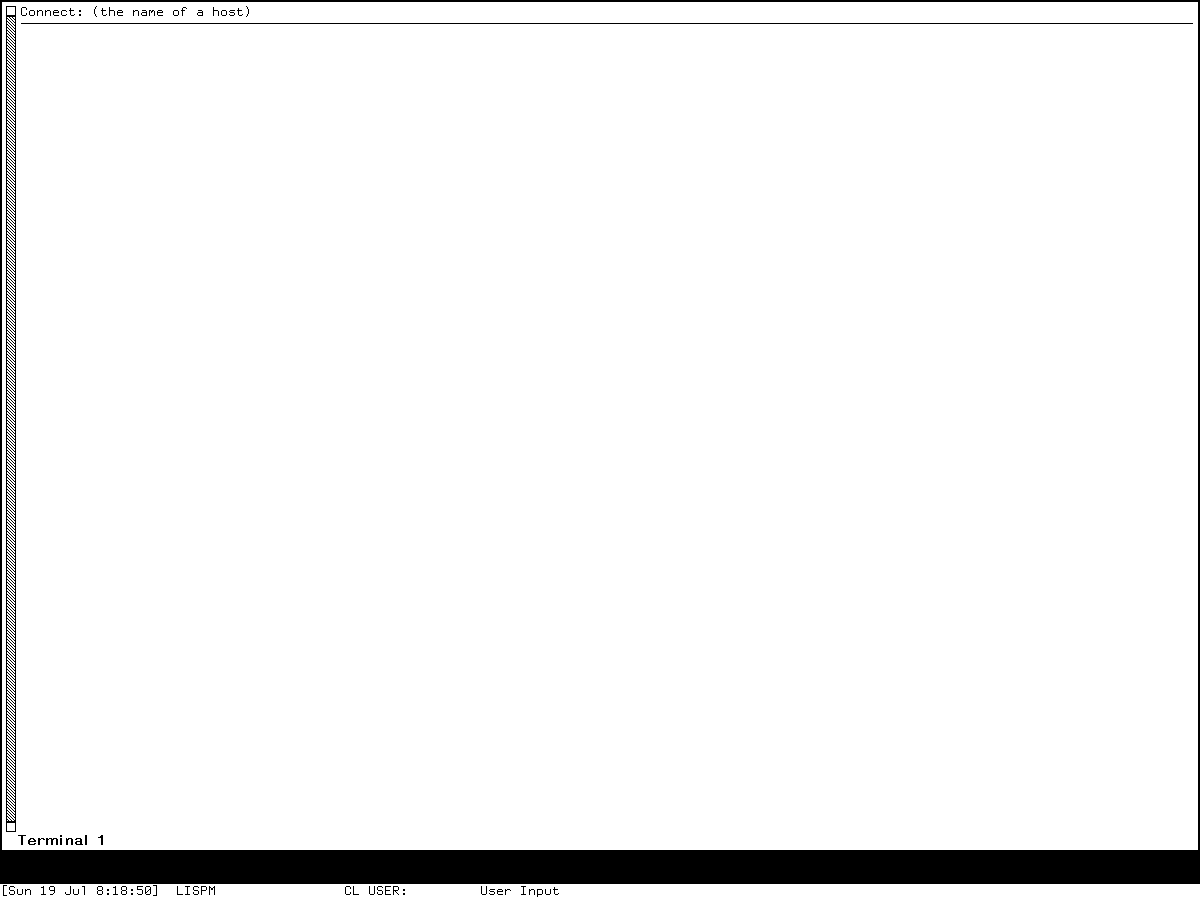
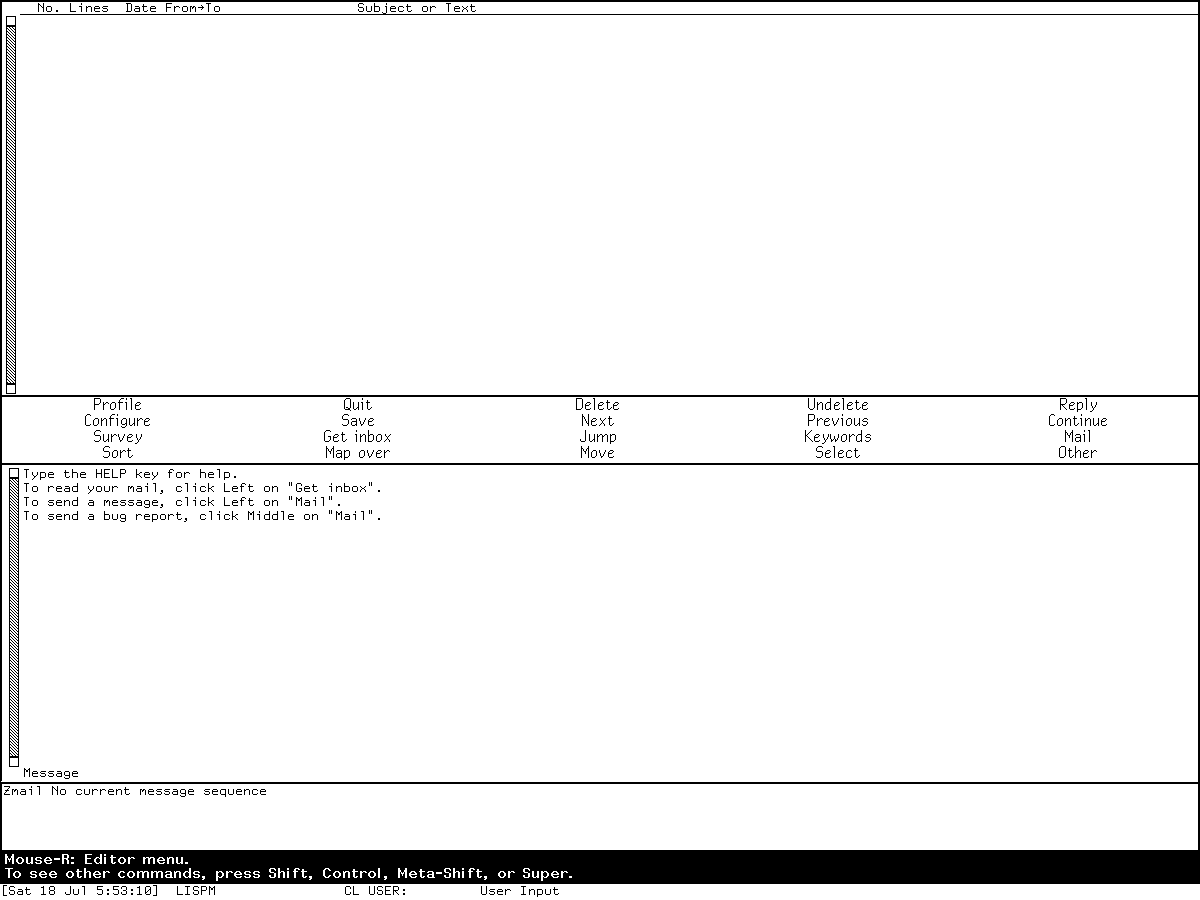
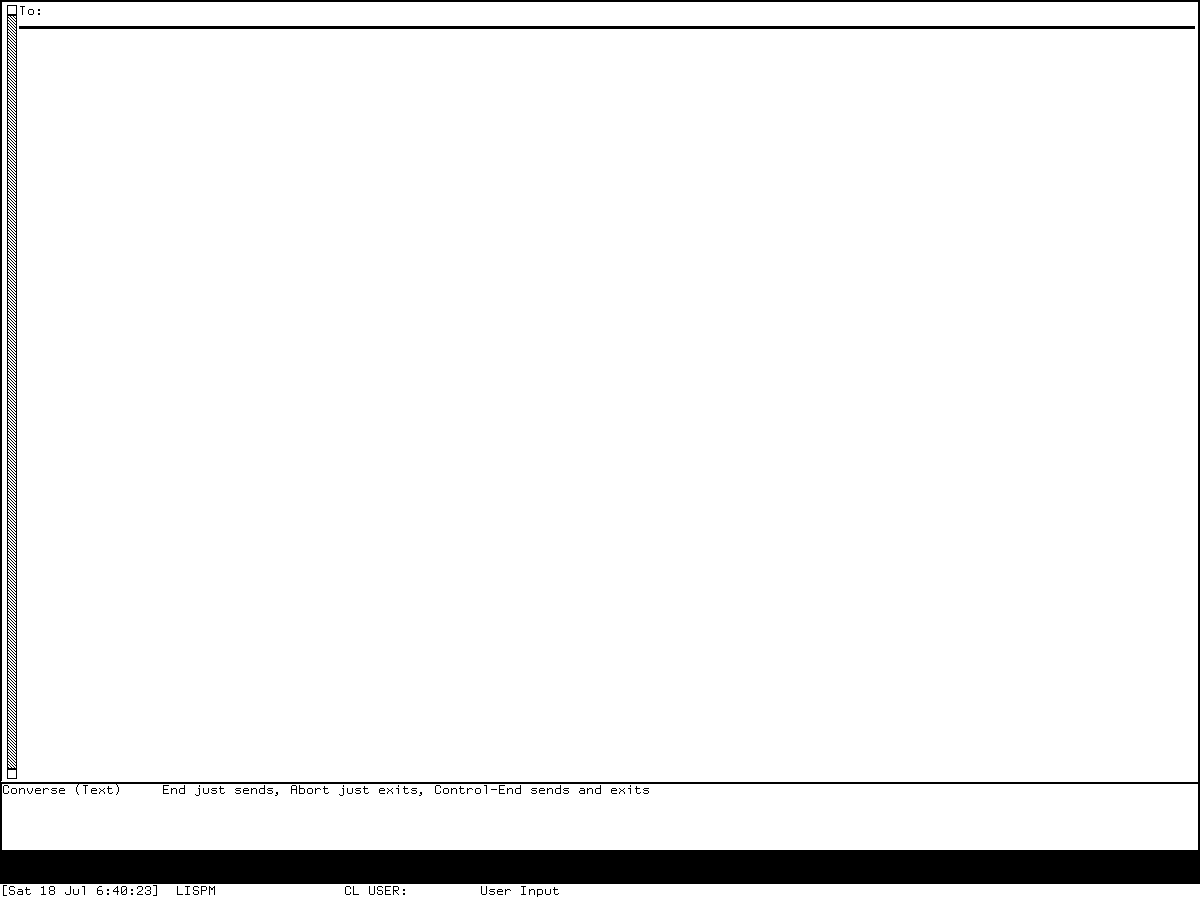
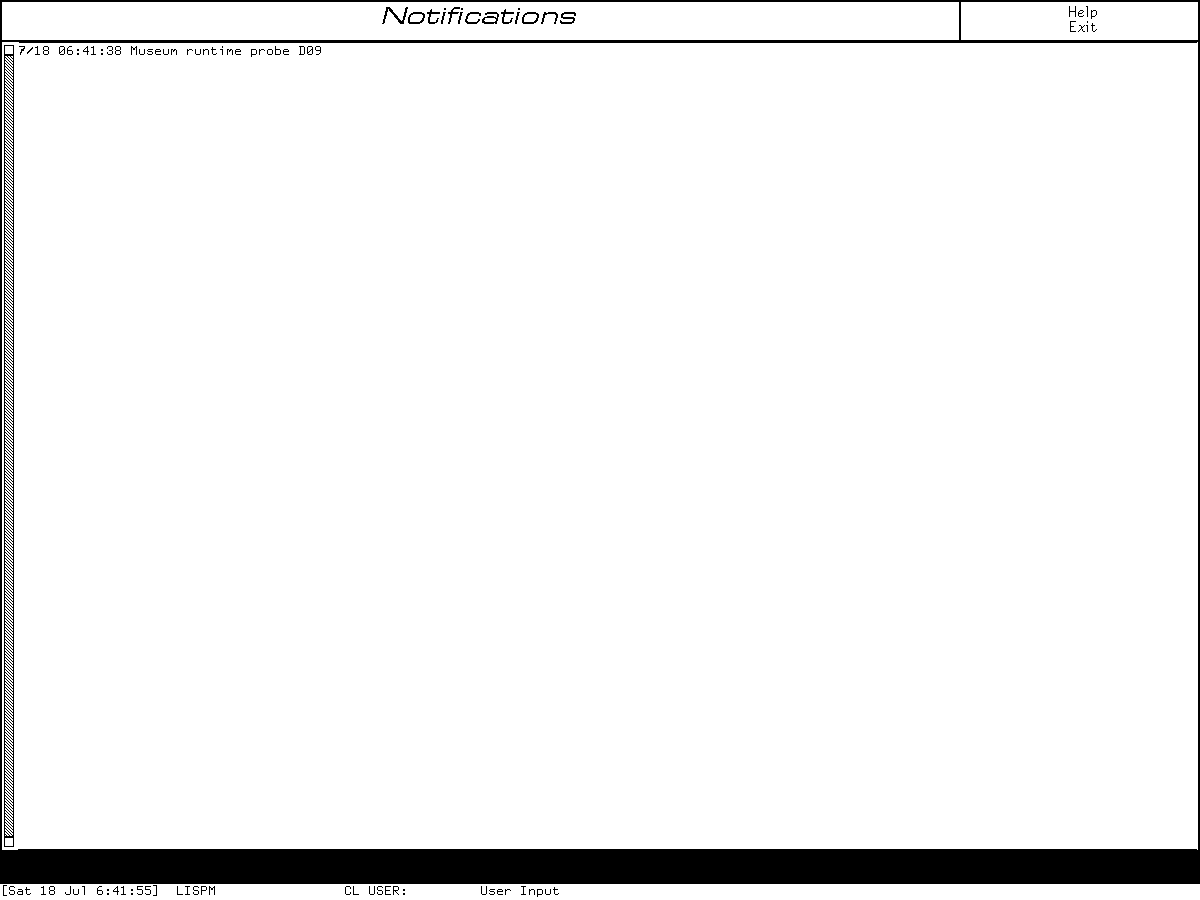
Select T, Select M, Select C, and Select N demonstrate the application frames and local interaction language. They do not establish a successful remote connection, mail store, peer conversation, or configured notification service.
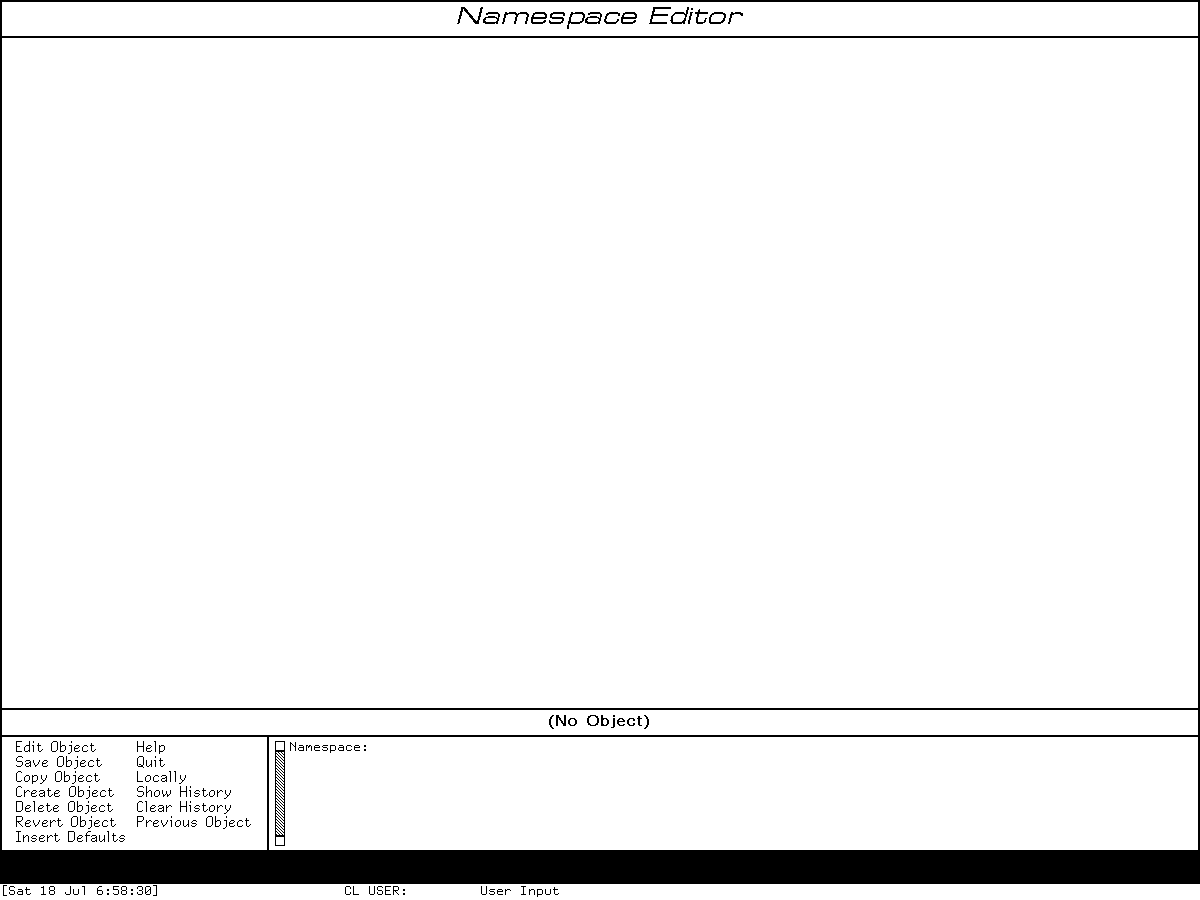
16. Look at administration as data, not magic
Namespace Editor exposes site and namespace structures:
The network-service registry likewise distinguishes declarations from operation:
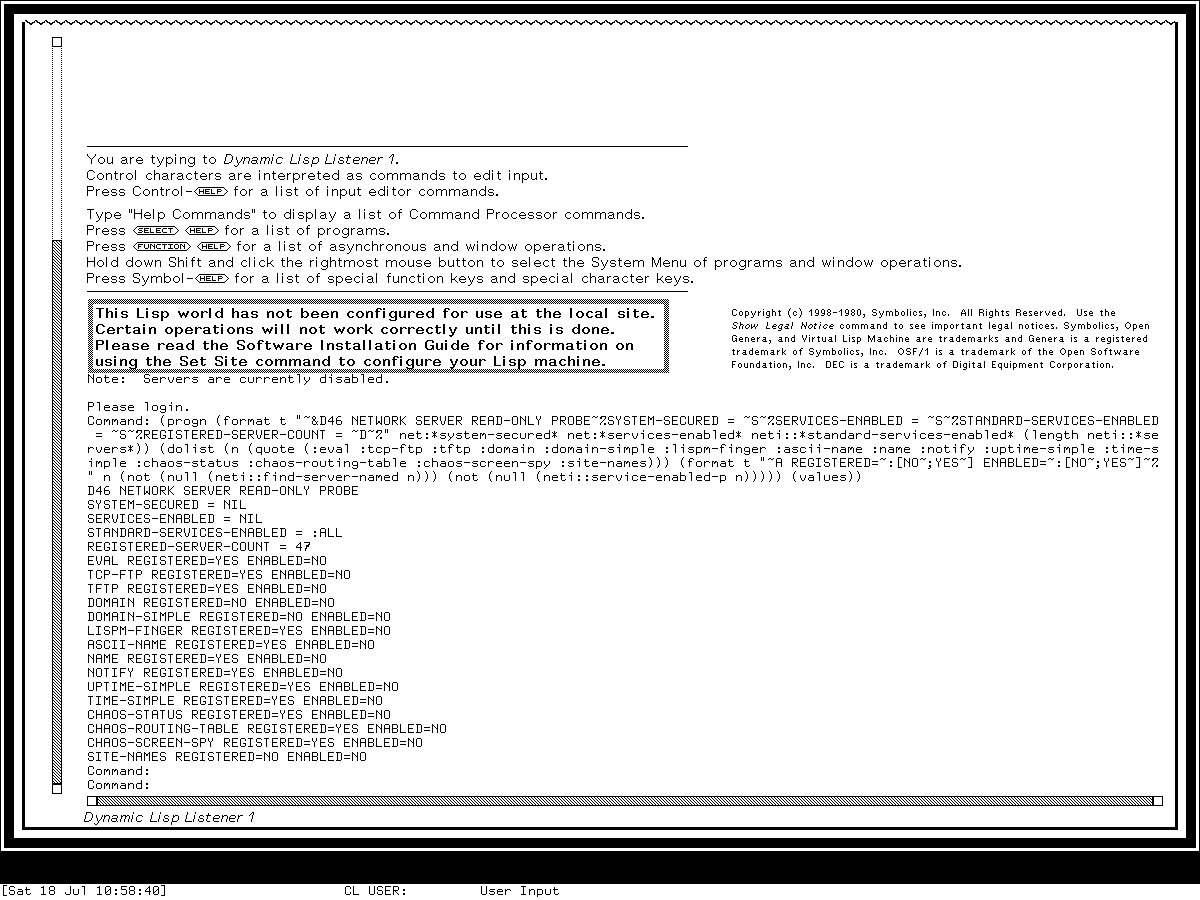
Menu entries, system declarations, and installed documentation are evidence that a facility exists in some form. They are not evidence that this world is configured to provide it.
What the story has taught you
You have used activities, the Command Processor, contextual Help, Zmacs modes and menus, typed presentations, object operations, Document Examiner, Inspector, Frame-Up, Debugger, Accepting Values, compiler tools, communications, and administration views. More importantly, you have learned the grammar connecting them:
- watch pointer documentation;
- distinguish selecting from creating;
- treat displayed objects as typed presentations where evidence supports it;
- ask Help in the active context;
- expect commands to have typed arguments and completion;
- use Abort for the current interaction, not as a promise of rollback; and
- preserve the boundary between a registered facility and a configured service.
Continue from here
- Use the Genera application atlas for every D01-D60 area, including optional products and unavailable facilities.
- Keep Genera orientation beside you as a compact activity and gesture reference.
- Follow the linked dossiers for complete bindings, source/runtime differences, and safe exit behavior.
Back to the Genera tour entrance · Continue to the application atlas