A working session on the MIT CADR
Imagine that you have just sat down at a CADR running the preserved System 303 environment. Your small job is to define a Lisp function, edit it, understand the object it returns, and find out why one call fails. Along the way we will deliberately take detours through the programs that make the machine feel like an integrated workstation rather than a Lisp REPL attached to a terminal.
This is a linear tour. Follow it from top to bottom the first time. The separate application atlas remains the exhaustive D01-D60 reference for facilities that are unavailable, unsafe, hardware-dependent, or outside this particular band.
Before touching anything
The large selected window owns most of the screen. Its label or mode line describes the current program. Two stable rows at the bottom describe mouse actions and machine state. Read those rows before clicking: the three mouse buttons are part of the command language, not interchangeable substitutes for a modern primary click.
If an interaction begins asking for something you did not intend, press Abort. Abort cancels the current interaction; it does not mean “close the application.”
Every animation below now comes from one coherent harness interaction. Most retain selected action-boundary frames so the typed command, prefix, prompt, and result remain legible at native size; the System-menu and QIX clips are continuous X11 captures. An animation is not used merely to alternate unrelated endpoints.
1. Meet the Lisp Listener
You begin in the Lisp Listener. Enter:
(values 7 8)The Listener prints both values in order. Unlike a conventional terminal, its input is editor-backed: you can move through and correct the form before submitting it, and printed values can feed later mouse-sensitive operations.
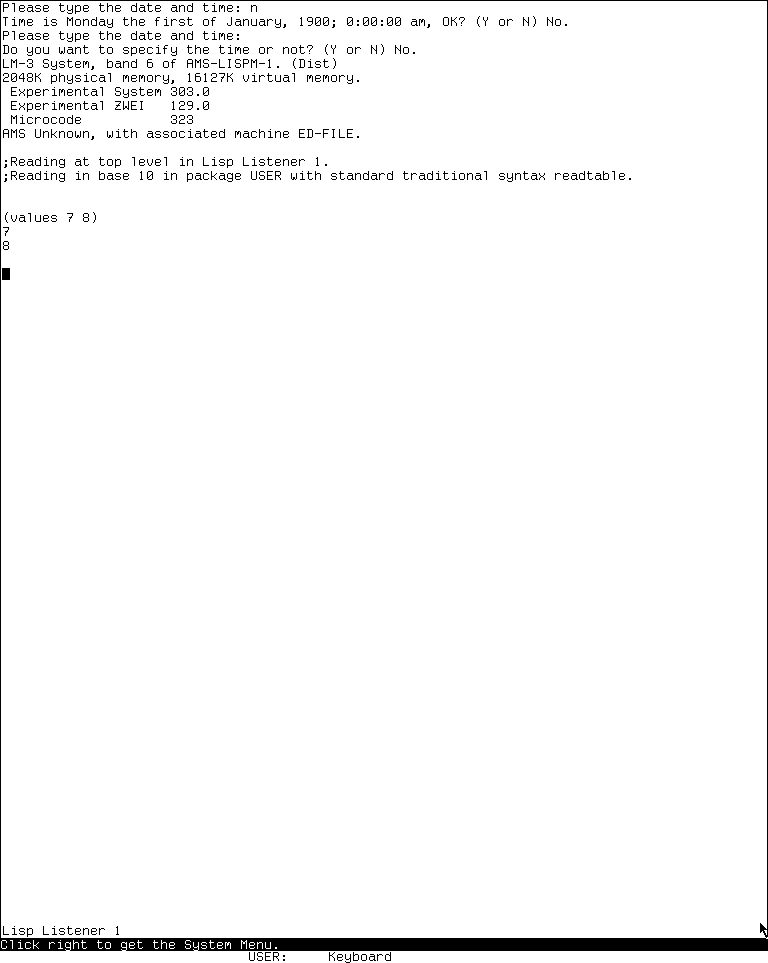
Runtime observation: the selected System 303 Listener after a harmless researcher-entered form. Notice the application label, editable input area, and two-row bottom status region.
You have learned the first recurring pattern: type into an active interaction, submit with Return, and use Abort to abandon incomplete input.
2. Ask the whole machine what exists
Press the Right mouse button over the Listener client to expose the System menu.
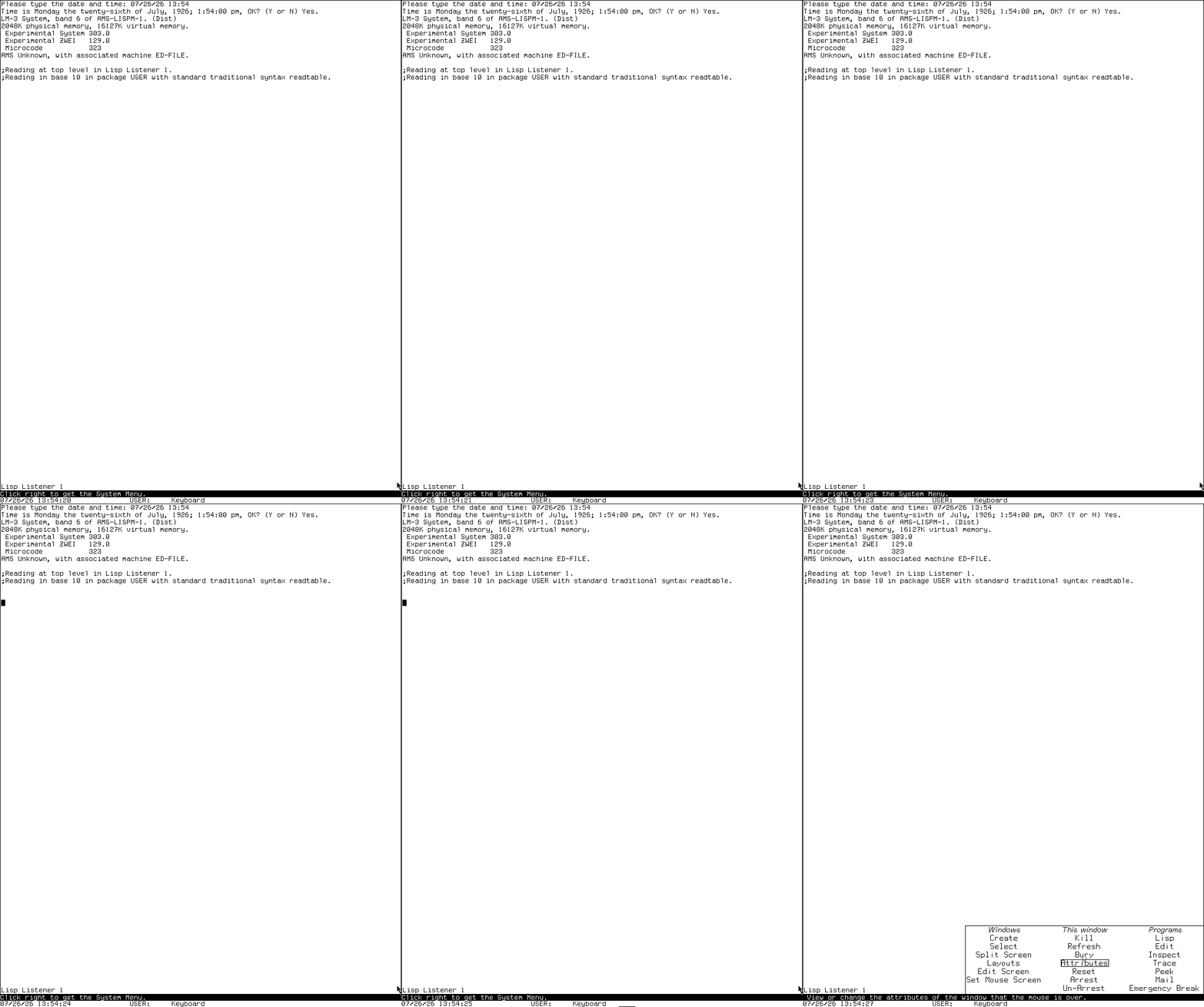
Runtime interaction: a continuous 10-frame-per-second capture from one session, including the actual Right-button dispatch and menu redisplay.
Read the menu by role:
- program entries select registered facilities;
- Create makes a new window according to a chosen type;
- Select finds an existing window;
- screen-management entries act on the exposed layout.
This is not a desktop launcher. Selecting and creating are intentionally different operations, and an existing program can continue to exist while deexposed.
3. Move the experiment into Zmacs
Use System E to select the editor. Create or choose a scratch Lisp buffer and enter a tiny definition:
(defun tour-square (x)
  (* x x))
Zmacs inherits the EINE/ZWEI editing tradition. Control commands usually perform local character or line movement; Meta commands commonly operate on larger syntactic units or invoke extended commands. Meta-X prompts for a named command.
Run Meta-X Text Mode, then Meta-X Lisp Mode, watching the mode line:

Runtime interaction: six action-boundary captures from one editor session show the two Meta-X prompts and both resulting mode-line changes.
The buffer did not become a different document. Its mode changed the active editing grammar: indentation, syntax-sensitive motion, commands, and Help context.
4. Let Help describe the current context
Press Help twice in the Lisp-mode buffer.

Runtime interaction: before, dispatched Help input, and visible dispatcher states belong to the same editor session.
Help is not one global manual page. Zmacs can describe a key, list commands, show mode-specific bindings, or dispatch to other self-documentation. The answer depends on which program and command table currently owns the keyboard.
Return to the buffer with Abort. You now know the second recurring pattern: ask for Help in the context you are trying to understand.
5. Inspect the value, not its printed spelling
Evaluate (list 'alpha 42 (list 'nested 'value)) in the Listener, then select Inspector for that object. The tour uses a small researcher-created list so every operation is harmless and legible.
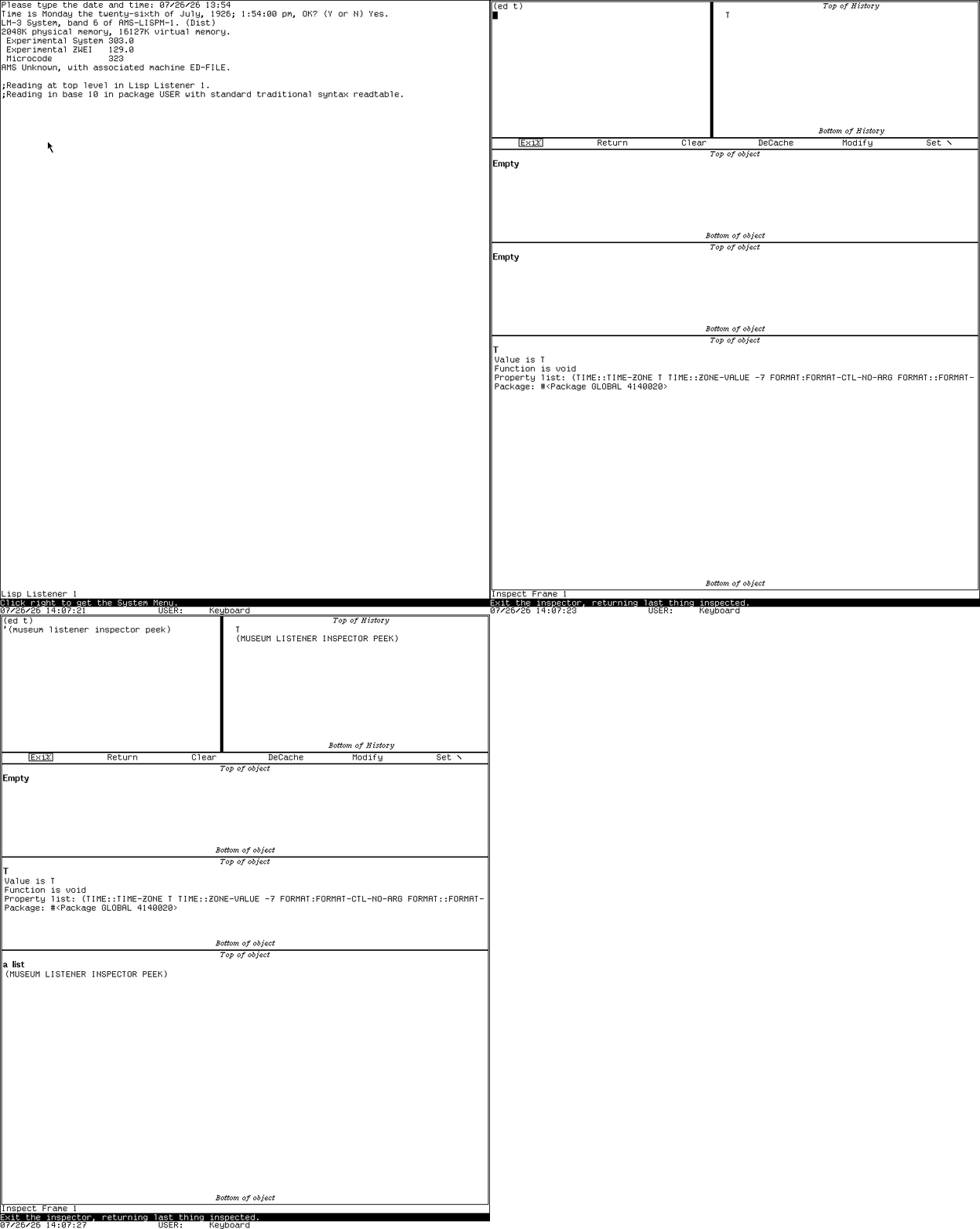
Runtime interaction: the typed list form, selection action, and Inspector result are retained from one session; no transition for arbitrary Listener output is claimed.
Rows in Inspector are mouse-sensitive regions. Pointing and clicking operate on the underlying component rather than merely positioning a text caret. This is an early object-oriented interaction style, but it is not Genera Dynamic Windows or CLIM.
Follow the nested list once, then return. The important lesson is that displayed objects can remain actionable objects.
6. Look at the living machine with Peek
Select Peek and choose its process view.
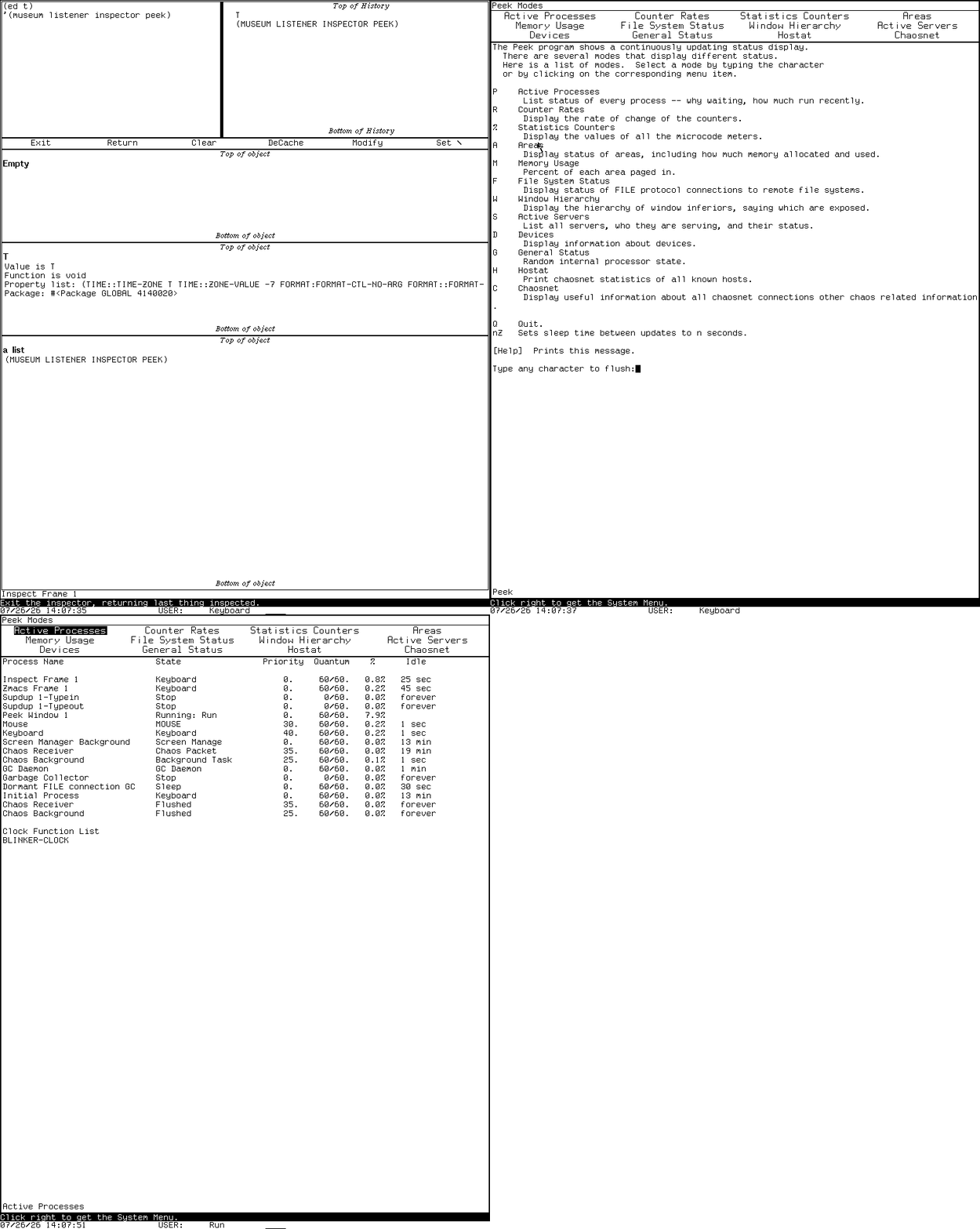
Runtime interaction: selection and process-view states come from one session. The clip does not claim that every Peek mode is safe or available.
Peek is a family of live views over processes, memory, windows, files, and network state. Its mode and Help determine the effective keys. Treat it as an observatory before treating it as a control panel: some commands can affect the running system.
This establishes another Lisp-machine habit: development tools and operational tools share the same object-rich window environment.
7. Rearrange the screen without adopting a desktop metaphor
Open the System menu and choose Edit Screen. Stop at the Screen Editor menu and read the mouse-documentation line.
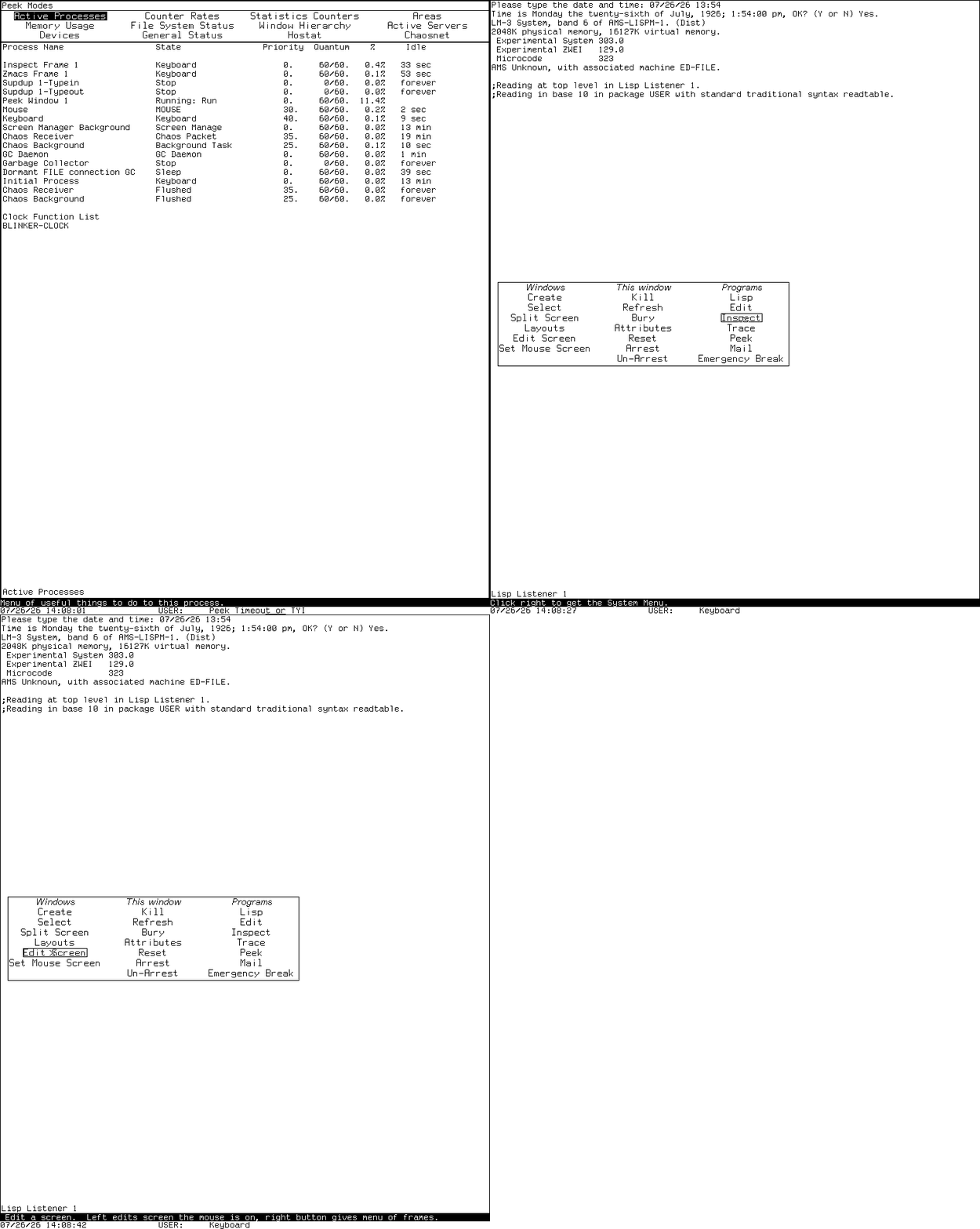
Runtime interaction: the System menu, selected Edit Screen item, and resulting prompt are from one session. No reshape or layout mutation is performed.
The Screen Editor can reshape, move, expose, bury, split, and otherwise manage TV windows. For this preservation tour, inspect the operations and press Abort rather than mutating the saved layout. The screen is a hierarchy of windows and sheets, not a pile of independent modern application cards.
8. Trace the function you wrote
Compile TOUR-SQUARE, enable Trace for it, call it once, and remove the trace.
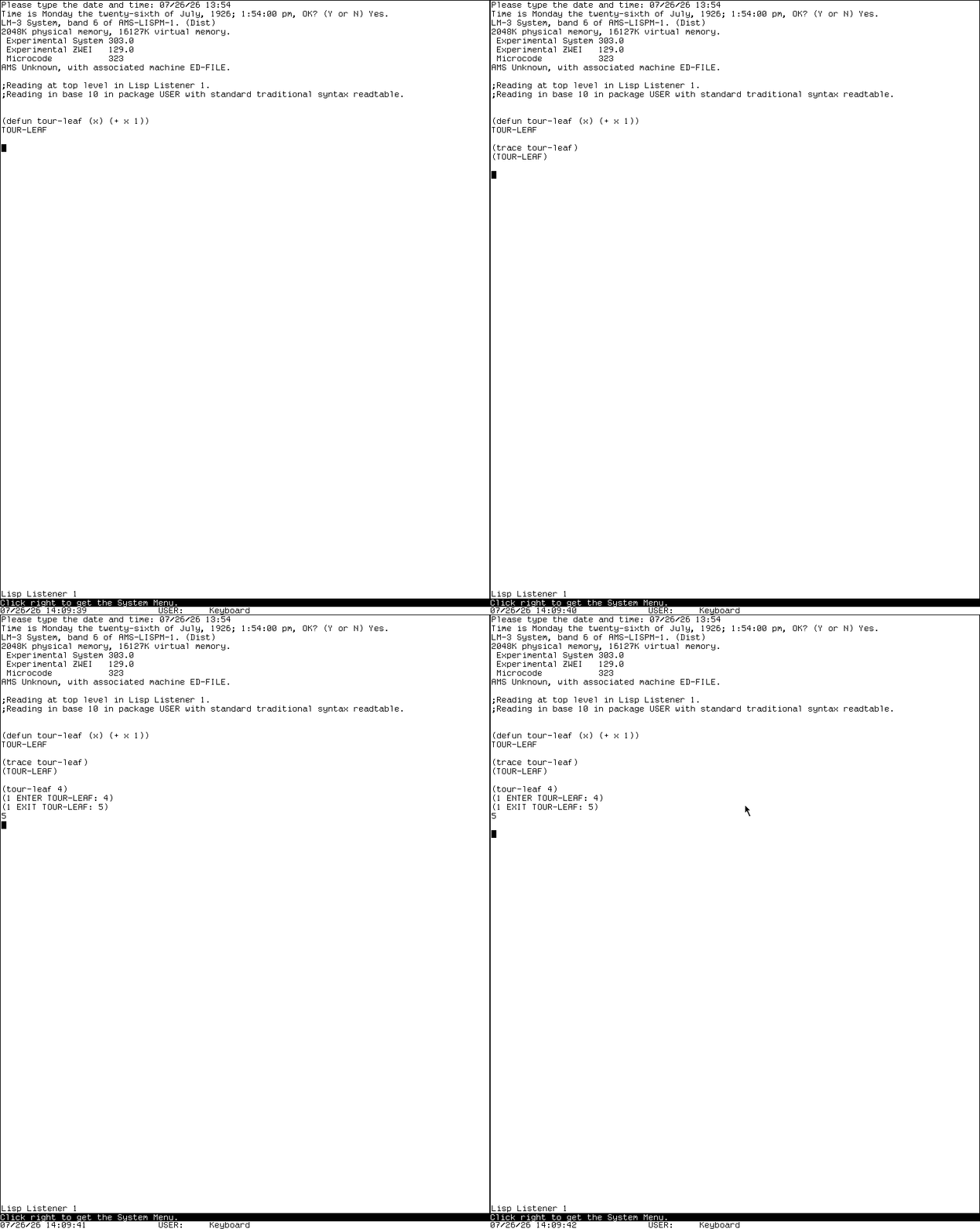
Runtime interaction: four action-boundary captures show the researcher-defined function, trace request, call, and reported return in order.
Trace reports calls, arguments, and returns. Step and Who-Calls answer related but different questions. They are integrated with the Lisp environment: function names, frames, and displayed results are system objects, not text scraped from a log.
The trace dossier is the binding-complete reference once you go beyond this safe path.
9. Learn what failure looks like
Now deliberately signal only the synthetic error described in the debugger dossier. The Error Handler replaces the normal flow with a condition report, stack context, and dynamically available recovery choices.
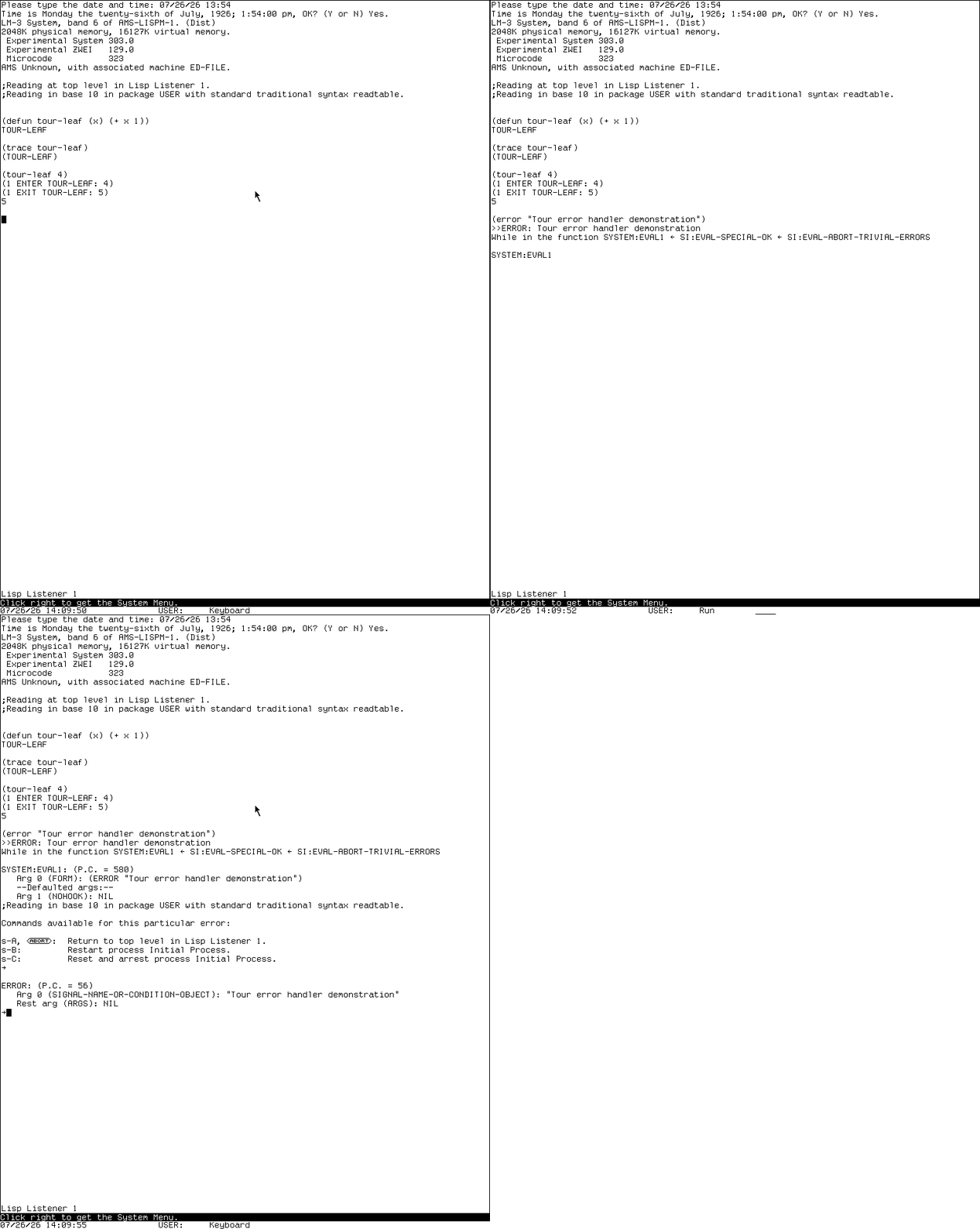
Runtime interaction: the entered form and resulting dynamic choices are from the same session. It does not claim that every condition offers these choices.
Read before choosing. The available commands depend on the condition and frame. Abort is often the correct first-tour exit, but it is not a universal rollback: side effects performed before the signal may already exist.
10. Take two network-shaped detours
The machine has terminal applications even when this isolated environment has no peer. Open Telnet and SUPDUP only far enough to see their disconnected prompts:


These are applications with their own protocol and terminal semantics, not generic terminal skins. The absence of a peer is part of the preserved observation. Exit without inventing a successful connection.
11. Compile, expand, and look underneath
Return to the Listener and use the reviewed compiler workflow on a tiny definition: macroexpand a harmless form, compile it, and disassemble the resulting function.
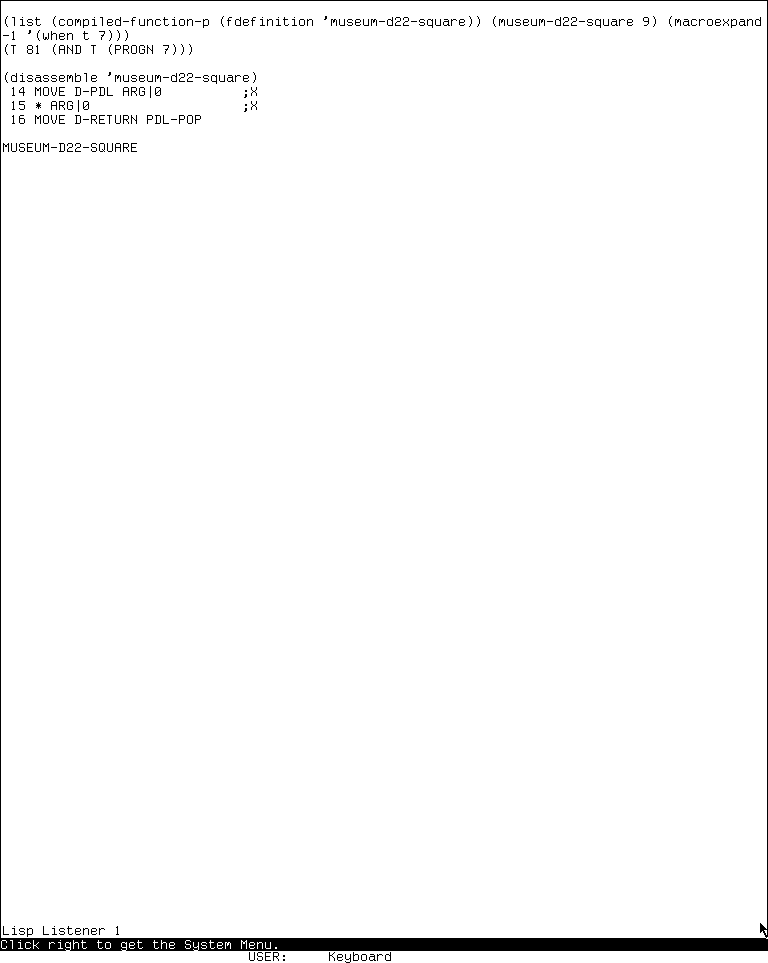
The compiler is not hidden behind a build button. Compilation, macroexpansion, disassembly, tracing, source editing, and object inspection are neighboring operations in one live Lisp environment.
For object-system context, ask Zmacs to describe a known Flavor:
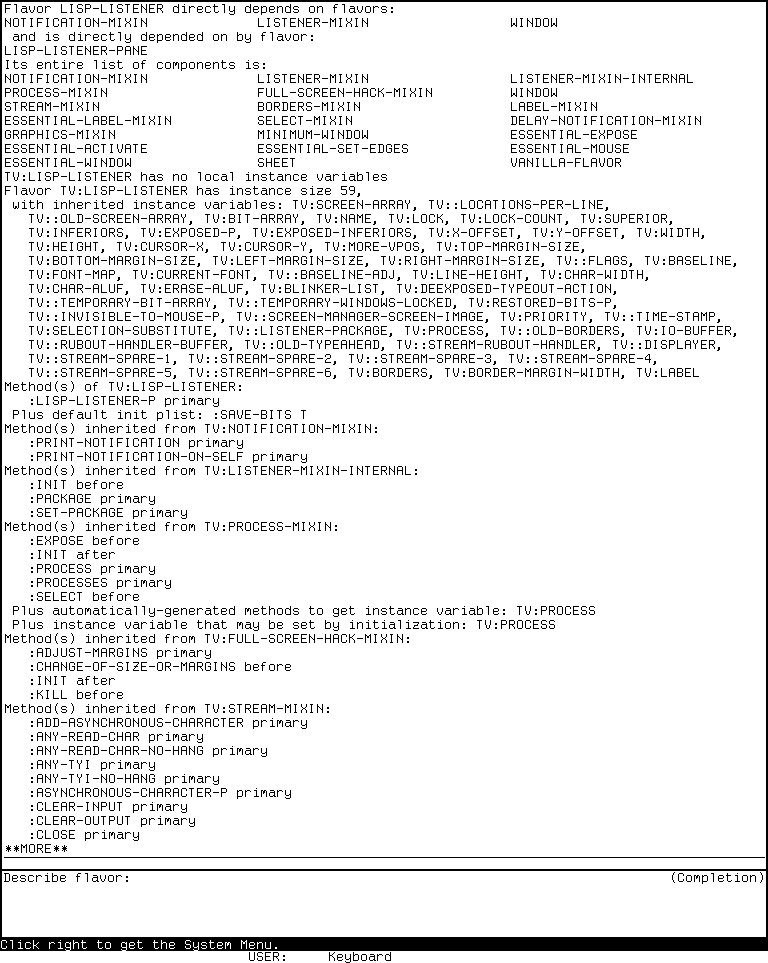
This connects the visible window you have been using to its implementation model.
12. End with the machine's playful side
The same display substrate supports demonstrations and games. Three safe, representative stops show the range:

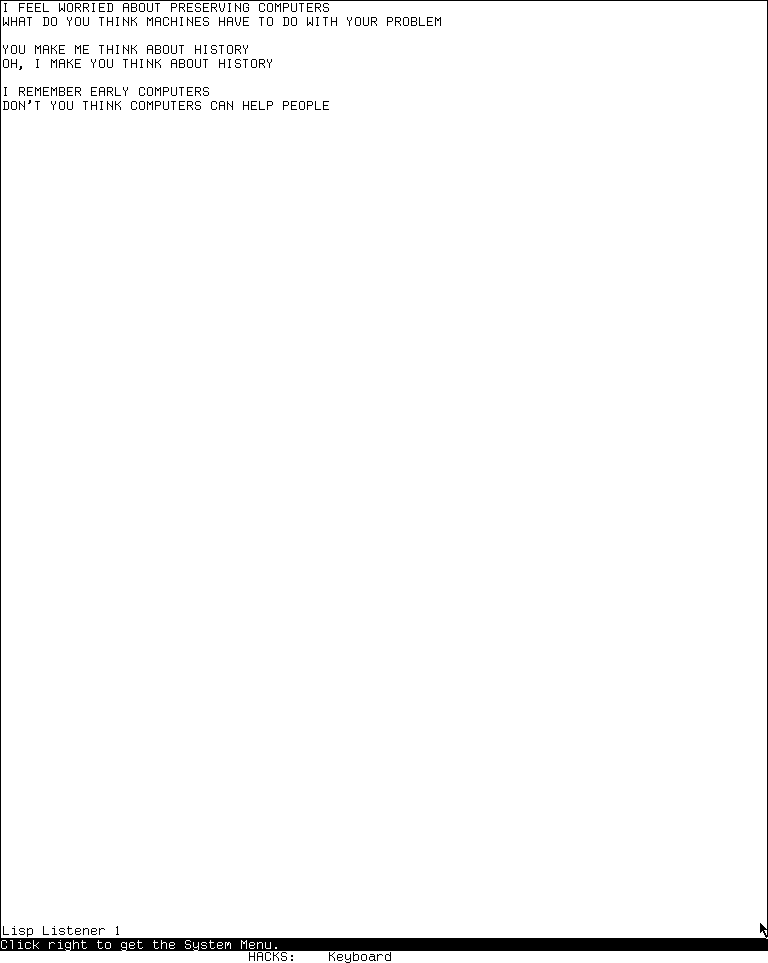
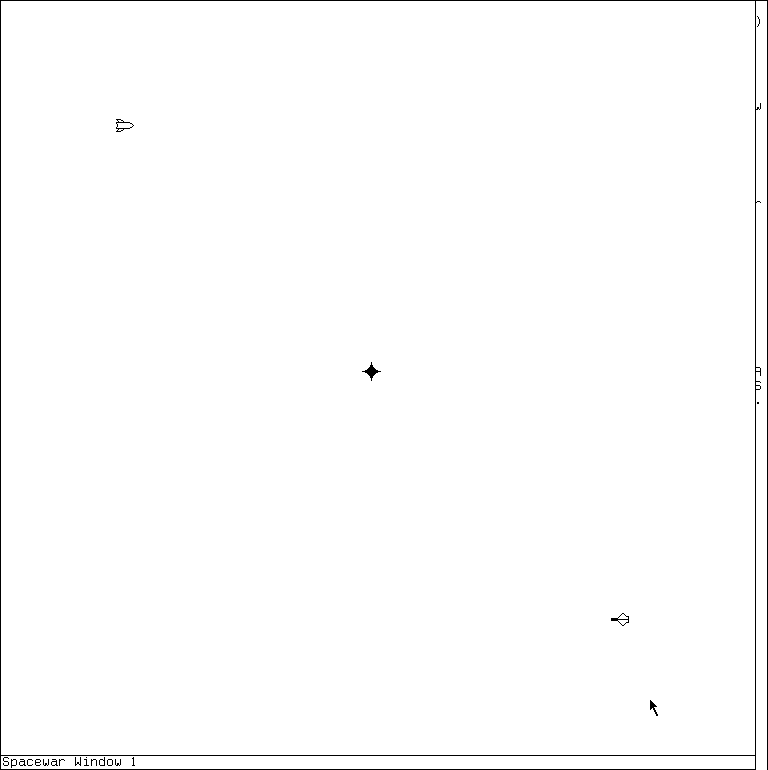
The QIX animation is a continuous 18-second, 10-frame-per-second run. The harness action record establishes the call; its immediate screen clear means the typed form is not legible in the video. The trail then evolves and Space visibly returns to the Listener. QIX exercises raster drawing, Doctor turns pattern-driven text interaction into a program, and Spacewar combines continuous simulation, two-player controls, status, and the TV display. They are historically specific programs, not decorative “retro” effects. Read each dossier's stop or exit controls before running it.
13. Know the emergency path, then leave it alone
Emergency Break reaches a degraded evaluator when the ordinary environment cannot be trusted. It is not a second everyday Listener.
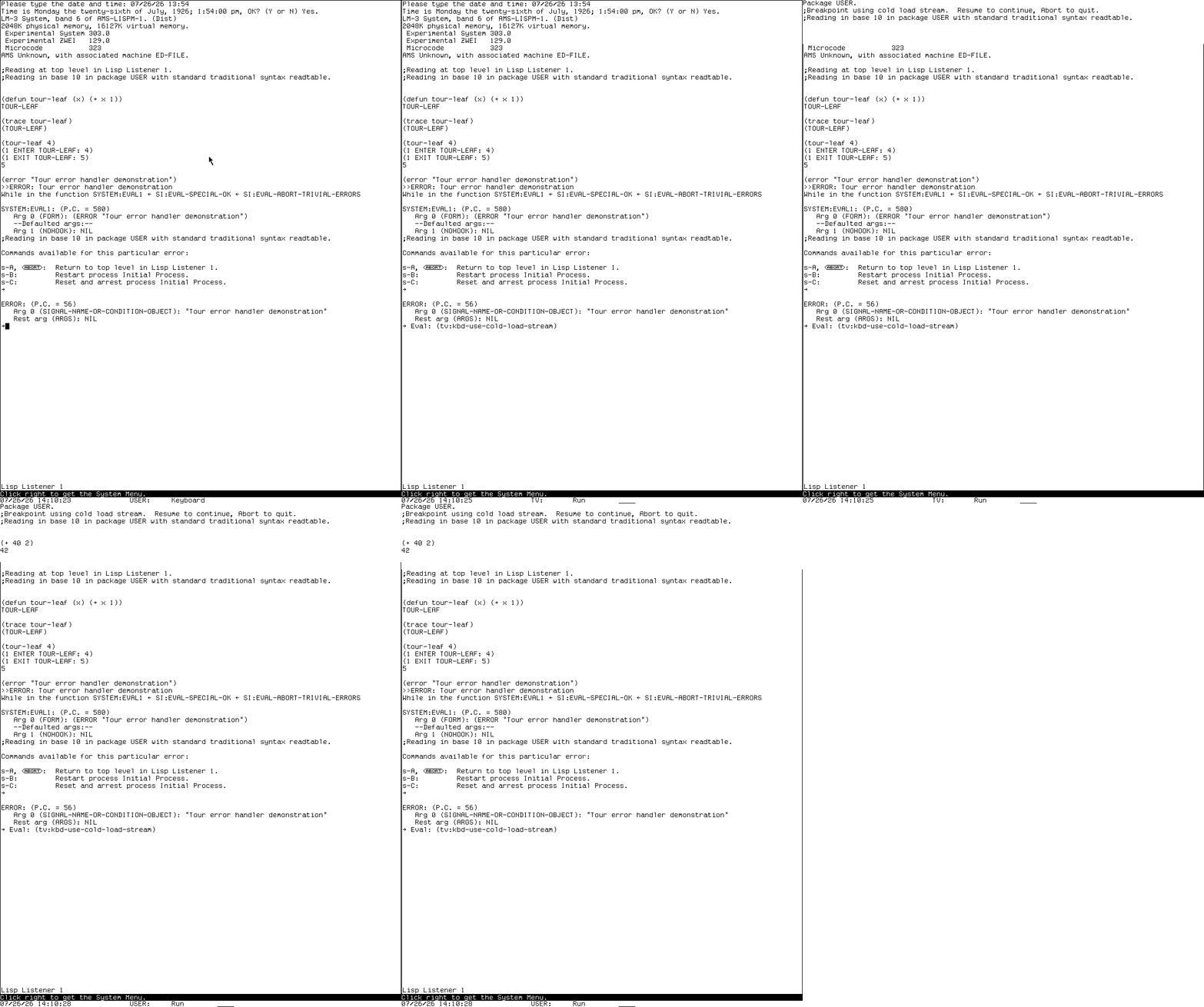
Runtime interaction: the direct recovery entry, researcher-entered (+ 40 2), and result are from one session. The clip does not imply that Emergency Break is harmless in an arbitrary machine state.
You should now recognize the system's main interaction language: selected windows, System operations, contextual Help, editor command tables, mouse-sensitive objects, live inspection, explicit recovery, and integrated development tools.
Continue from here
- Use the CADR application atlas to find every D01-D60 area and its preservation boundary.
- Keep System 303 orientation beside you as a compact control reference.
- Follow the linked dossiers for complete bindings, source/runtime differences, and safe exit behavior.
Back to the CADR tour entrance · Continue to the application atlas